


Removing a doctor from the waiting list
Changing the date, time, or branch of the clinic in the waiting list
The principle of sorting doctors' cards
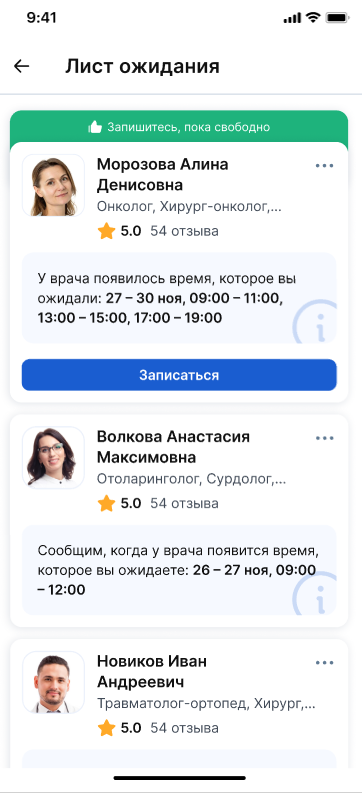
In the section«Лист ожидания», you can see all the doctors who have been added to the waiting list to track the appropriate appointment dates and times.
Viewing the waiting list 
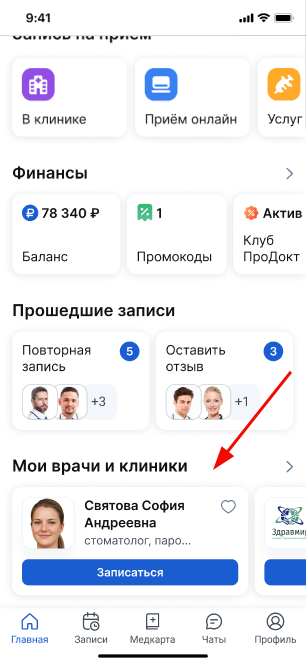
The waiting list is available in the section «Мои врачи и клиники».
- Open the section on the Main page«Мои врачи и клиники».
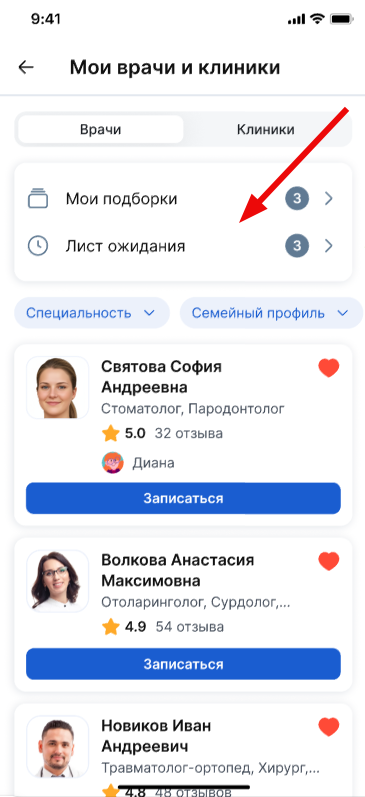
2. Select a block«Лист ожидания»
3. A page opens with a list of all the doctors you have added.
Removing a doctor from the waiting list
You can cancel the waiting time for a doctor appointment. There are two ways to do this:
Method 1. From the doctor's page
- Open the doctor's card or page.
- Click the button«Удалить лист ожидания».
- Confirm the deletion.
Method 2. From the waiting list page
- Go to the - section«Мои врачи и клиники»«Лист ожидания».
- Find the right doctor.
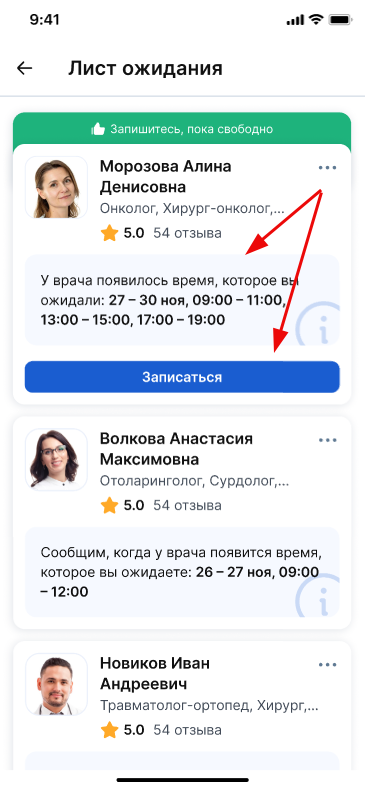
- Click on the three dots in the doctor's card.
- Choose«Удалить из листа ожидания».
After you remove a doctor from your waiting list, notifications about slots for that doctor will stop. All your data about the selected date and time will be deleted.
Changing the date, time, or branch of the clinic in the waiting list
- Go to the - section«Мои врачи и клиники»«Лист ожидания».
- Find the right doctor.
- Click on the three dots in the doctor's card.
- Choose«Изменить дату и время».
- Edit the required fields.
- Save the changes.
The principle of sorting doctors' cards
The cards are sorted by the date the doctor was added to the waiting list: the last ones added are at the top.
If the doctor has suitable slots for recording, his card goes up with a note about the availability of the recording.
The comment to the card indicates which date and time appeared in the doctor's schedule.
To create an entry, click «Записаться».
The doctor's card page opens, then use the instructions to make an appointment at the clinic.
When the waiting period for recording has expired, the card will move down the list in a separate block with the appropriate label.