


1. The patient does not join the consultation
2. The patient does not understand how to connect
3. The patient passed out during the consultation
4. Poor communication during the consultation
5. You can't see or hear the patient.
6. The patient requests to postpone the consultation
The patient does not join the consultation 
Ask the administrator to call the patient. His phone number should be indicated in the record. If the patient hasn't contacted you, don't worry, it happens. The commission from the clinic will not be deducted, and the money for the consultation will be returned to the patient.
The patient does not understand how to connect
In order to join the consultation, the patient must:
- Log in to the medical center and log in using your phone number.
- Confirm your email address in the Medical record section.
- Select a block on the main screen«Ближайшая запись». A page with detailed information about the recording opens.
- Press the button «Начать консультацию»: it will be available 5 minutes before the start of the consultation.
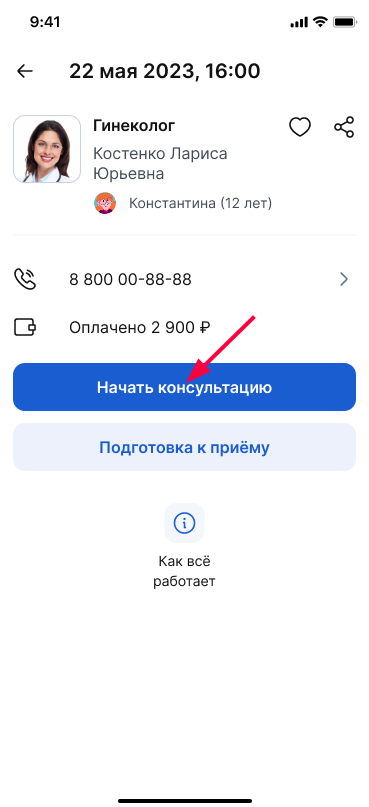
The consultation page opens.
- Tap the button «Связаться по видео»in the upper-left corner of the screen.
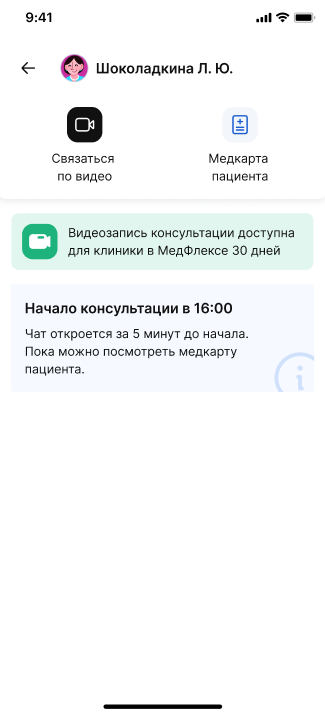
The patient passed out during the consultation
Do not leave the consultation, it is possible that the patient has something wrong with the connection or the device has run out of charge. Ask the administrator to call the patient. His phone number should be indicated in the record.
Poor communication during the consultation
Wi-Fi is faster than mobile Internet — connect via Wi-Fi and advise the patient to do the same. Check your connection speed before consulting, for example, through the website https://yandex.ru/internet /.
If the video is of poor quality and the other person is hard to hear, turn off the video for a while, and the sound quality will improve.
Close all other tabs in the browser.
You can't see or hear the patient.
Most likely, the patient did not provide the service with access to the microphone and camera.
Smartphone app Solution
- Ask the patient to delete the app and download it again. Don't worry, all his data will be saved.
- When launching the app for the first time, the patient should always press «Разрешить». The app only requests access to the camera and microphone.
The solution for the browser on the computer
How to turn on the camera and microphone for consultation
- When you visit the consultation, the browser (Chrome, FireFox, etc.) will ask for permission to access the camera and microphone.
- A small icon (usually a camera or microphone) or a pop-up window will appear next to the address bar.
- Click on this icon or window. The settings for this site will open.
- In the settings, find «Камера»the and items «Микрофон»and allow their use (select «Разрешить»or «Использовать»).
- After that, the camera and microphone will start working.
If the request window does not appear, click on the lock icon or «i»to the left of the website address in the browser bar — you can also find these settings there.
You can find more detailed instructions in the help section of your browser: Chrome, Yandex Browser, FireFox.
Other browsers
In other browsers, the principle of operation will be the same: when the site requests access, click on the icon or notification that appears, and allow access to the necessary devices in the settings.
The patient requests to postpone the consultation
The patient can reschedule the online consultation in the personal account of the doctor if there are less than 60 minutes left before the consultation. We described in more detail in the article canceling and rescheduling a record.
Important! A consultation that has already begun cannot be rescheduled. For a refund to the patient, it is necessary to contact the head of the clinic. More details about the refund of funds to the patient were described in the article.