


Every evening, the nurse sends a letter to the doctors registered ProDoctorovwith her with an appointment schedule for the next day.
The button «Смотреть подробное расписание»in the email leads to the Doctor's web page. It displays all your entries from the portalProDoctorov, from the Medical Library, the Medflex and MIS Medlock widgets.
You can view the schedule for yesterday, today, and the upcoming 30 days.
If you view the schedule from your computer, then all the information about the reception will be displayed in the table.
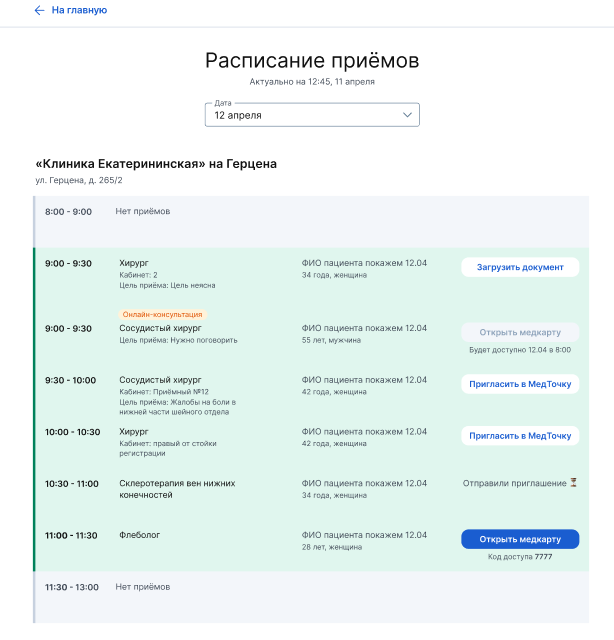
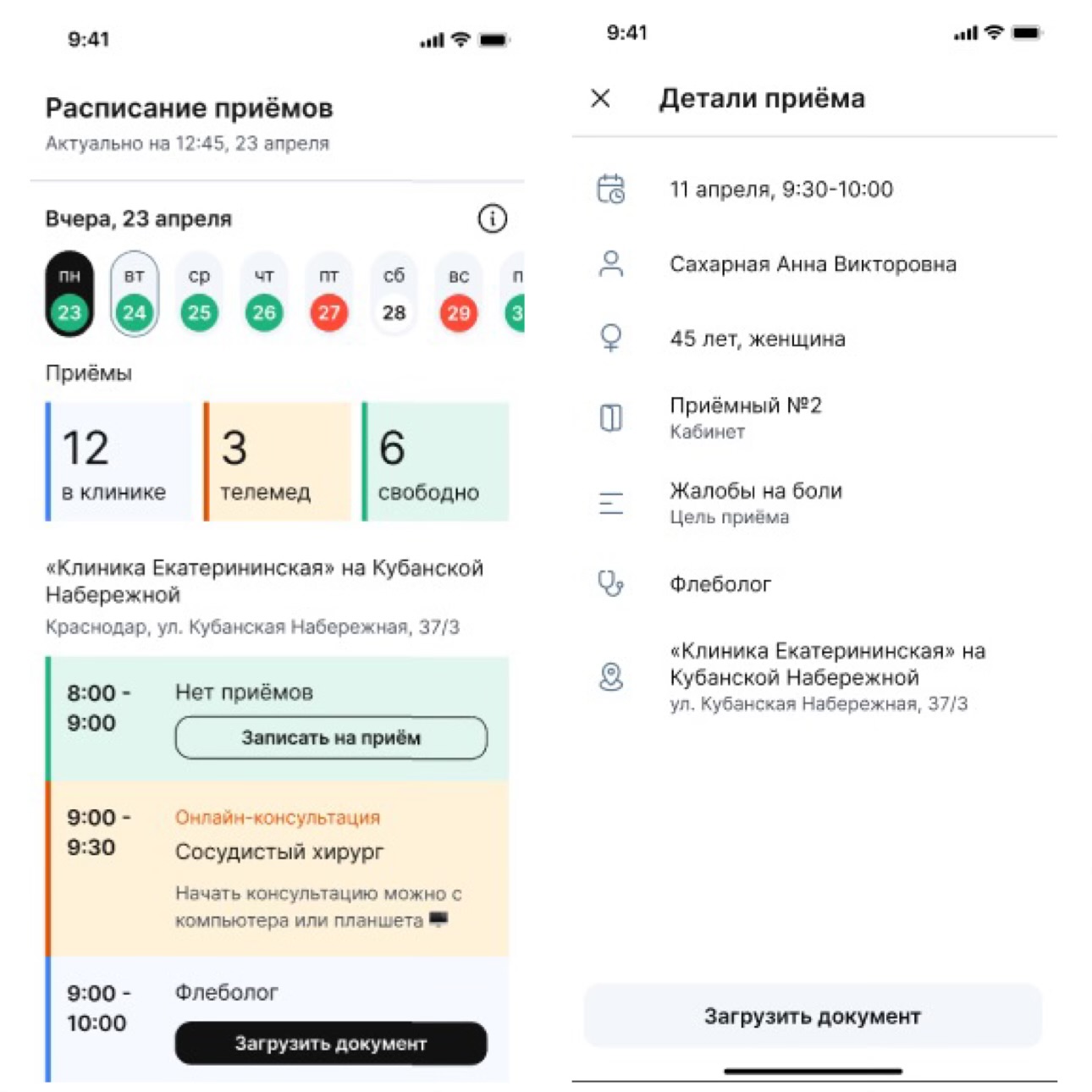
If you are viewing the schedule from your phone, click on the appropriate entry in the schedule to view detailed information about the appointment.
If the email does not arrive 
- It got into spam. Check the folder«Спам». If the email is in it, click «Не спам»and add the sender's address to the contacts.
- The mailing list is disabled. Log into your personal account ProDoctorovand make sure that there is a check mark in the notification settings next to the item«Расписание приёмов на завтра».
- You don't have slots for today and tomorrow. Go to ProDoctorov, find your page and see if it is possible to make an appointment with you for a certain time.
- The clinic's Medical Information System (MIS) does not transmit information about busy reception hours. Emails with a schedule are sent only if the IIA transmits this information. If you don't know if your MIS is transmitting information about busy hours, please contact support: help@medrocket.ru 8 800 707-31-29.
If all of the above did not help, contact support: help@medrocket.ru 8 800 707-31-29
Online consultation
An orange bar is displayed for online consultation appointments«Онлайн консультация».
The recording can have the following button states:
- «Открыть медкарту (недоступно)» — it is displayed when the consultation is more than 1 hour away.
- «Открыть медкарту (доступно)» — it is displayed when the consultation is 1 hour or less away. When you click on the button, you will be taken to the screen of entering the code to enter the consultation. No additional authorization is required.
- «Начать консультацию» — it is displayed when the consultation is 5 minutes or less away. No additional authorization is required.
- «Открыть медкарту» — it is displayed at the end of the consultation, when the medical card is still available.
Offline consultation
The recording can have the following button states:
- «Пригласить в МедТочку» — it is displayed before the start of the appointment if the user does not have a medical card.
- «Открыть медкарту (доступно)» — it is displayed immediately if the user has given access to the medical record in the details of the record, without time limit. If you click the button, the patient's medical record opens in the next window.
- «Загрузить документ» — displayed:
- After the start of the appointment, if the patient has not created a medical record before the start of the appointment.
- After the start of the appointment, the patient did not open access to the medical card.
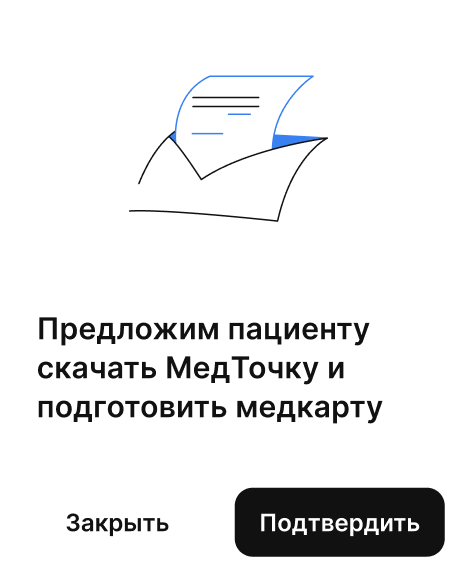
Invite the patient to the medical room
It is displayed before the start of the appointment if the patient does not have a medical card.
Upon confirmation, an SMS message is sent to the patient with a link to download the application.
If the patient has created a medical record and has not denied access to it in the details of the record, a button will appear in your schedule for this record«Открыть медкарту».
If the patient did not create a medical card before the start of the appointment or closed access to the medical card, a button will be displayed after the start of the appointment«Загрузить документ».
Upload a document
It is displayed if the patient does not have a medical card or has not opened access to the medical card.
By clicking on «Загрузить документ», a page opens «Укажите данные пациента»on which there are fields «Фамилия», «Имя», «Дата рождения».
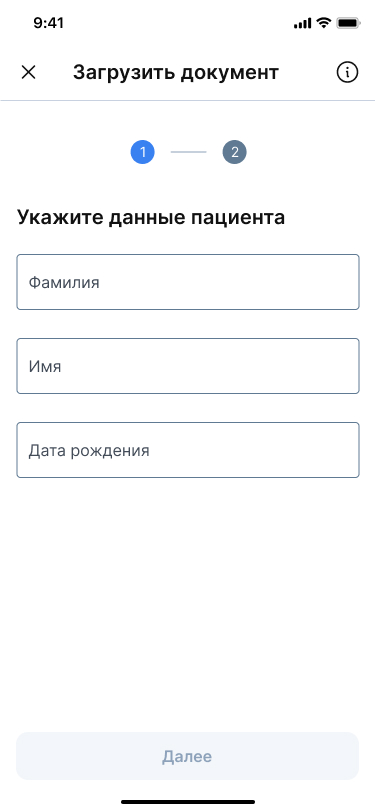
After entering this data, you will have the opportunity to add up to 9 files.
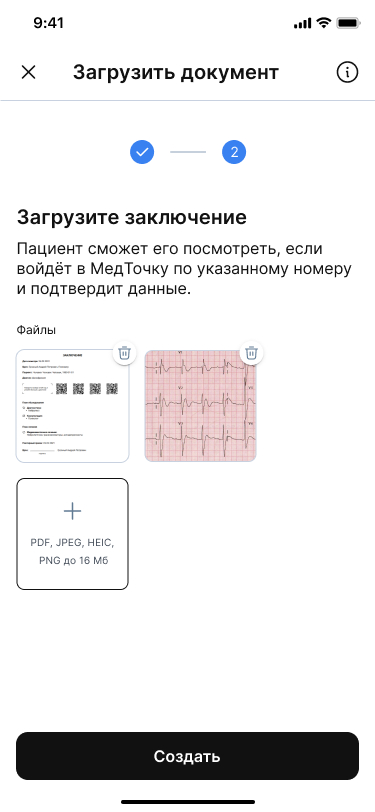
If the document is uploaded successfully, the user will receive an SMS with a link to download the application: «Врач добавил документ в вашу медкарту "ссылка"». The button «загрузить документ»in the schedule changes to «Загрузили документ 👍🏻».