


Bad connection
The doctor can't see or hear you.
Smartphone app Solution
The solution for the browser on the computer
Bad connection 
If you are connected to the mobile Internet, try connecting to Wi-Fi — it usually works faster. You can check your connection speed, camera and microphone operation before the consultation. For more information, see the article Preparing for an online consultation.
Close all other tabs in the browser and make sure that your device is not downloading updates.
If the video is of poor quality and the other person is hard to hear, turn off the video for a while, and the sound quality will improve.
The doctor can't see or hear you.
Most likely, you did not provide the service with access to the microphone and camera.
Smartphone app Solution
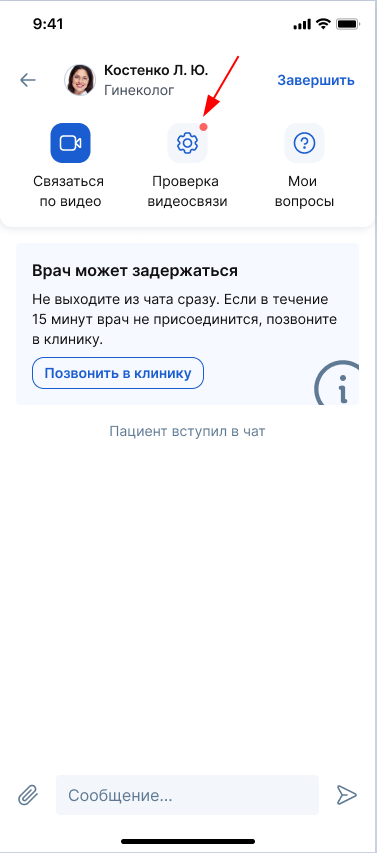
On the consultation page, click «Проверка видеосвязи».
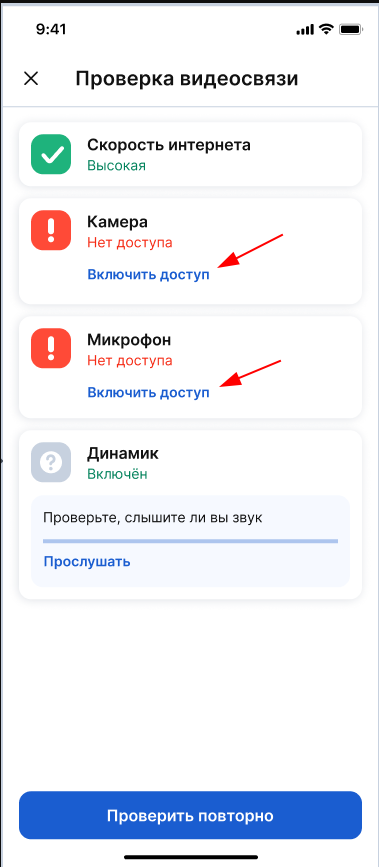
On the page that appears, click «Включить доступ»for camera and microphone, respectively.
The solution for the browser on the computer
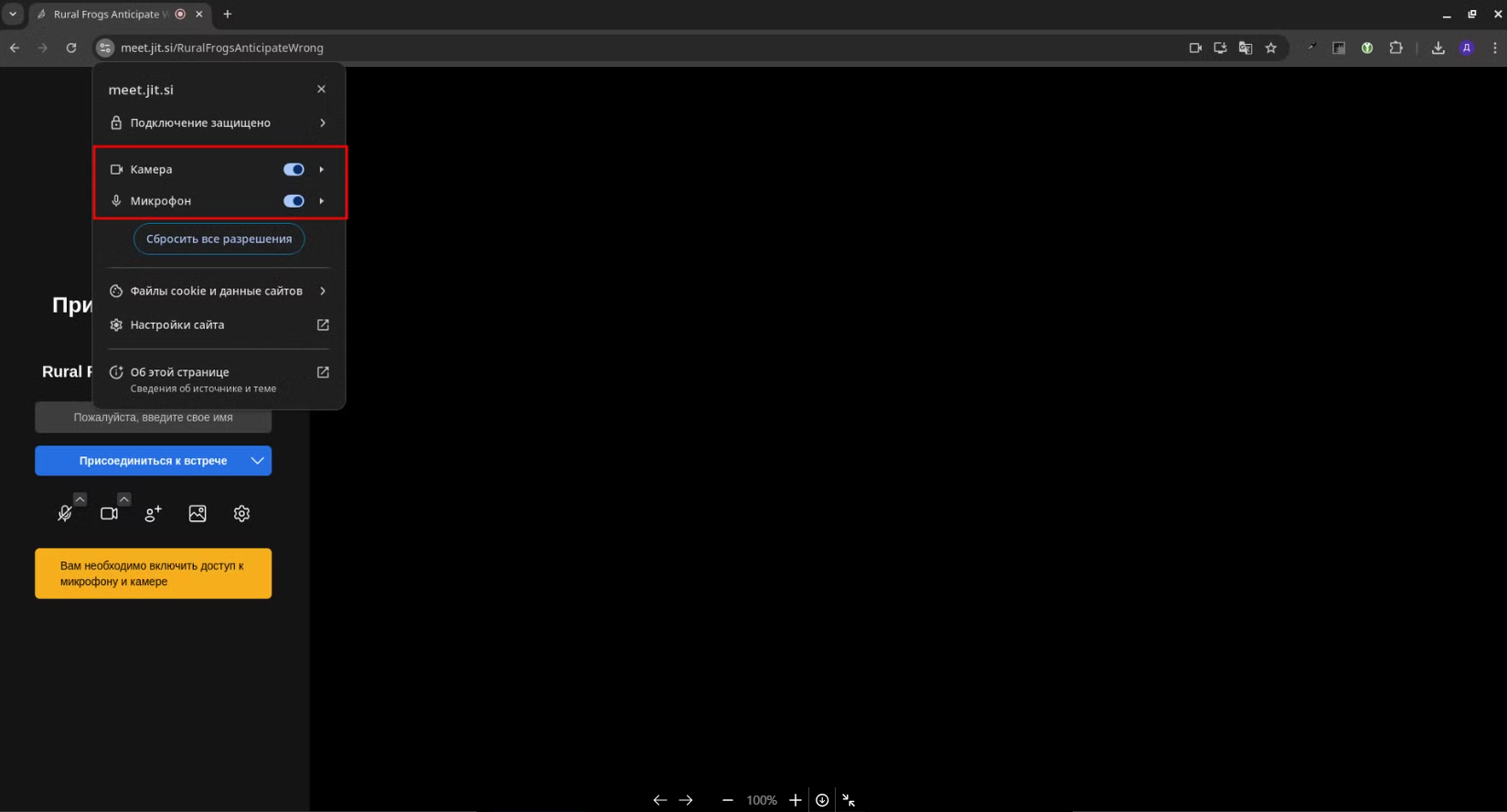
Chrome
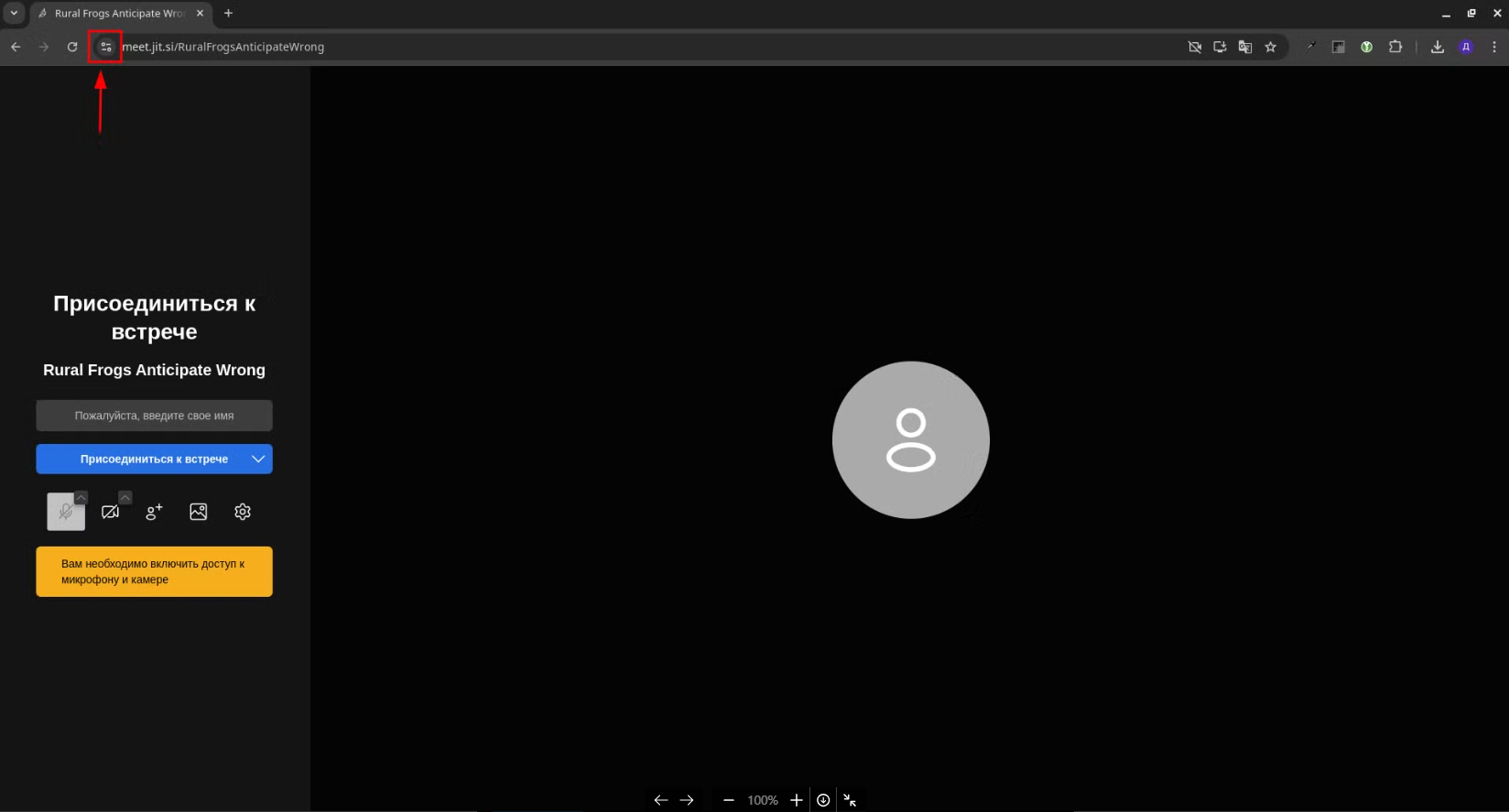
1. In the upper-left corner, click on the icon in front of the address bar.
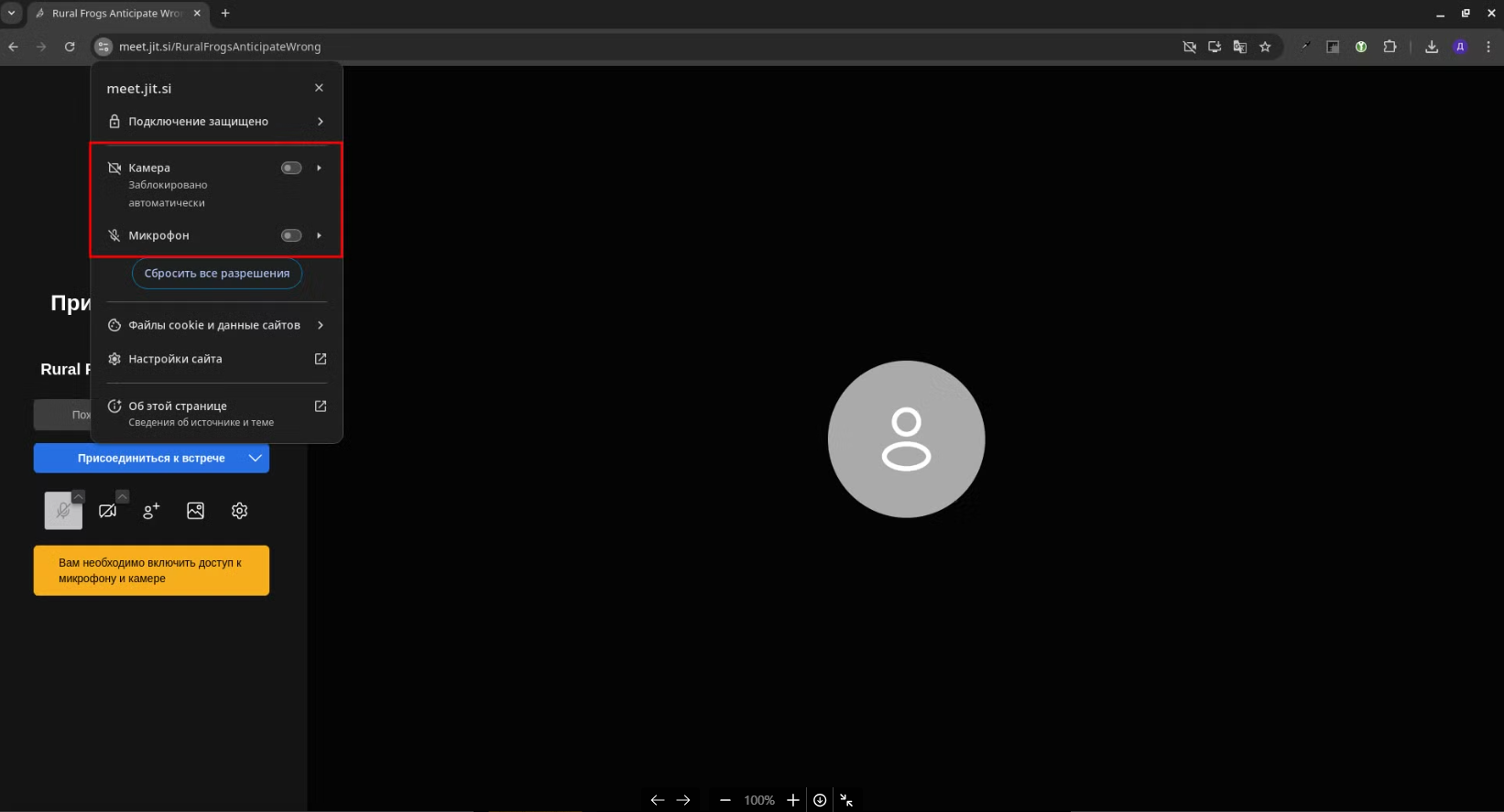
2. In the menu that appears, click on the switches next «Камера»to and «Микрофон». They should be highlighted in blue.
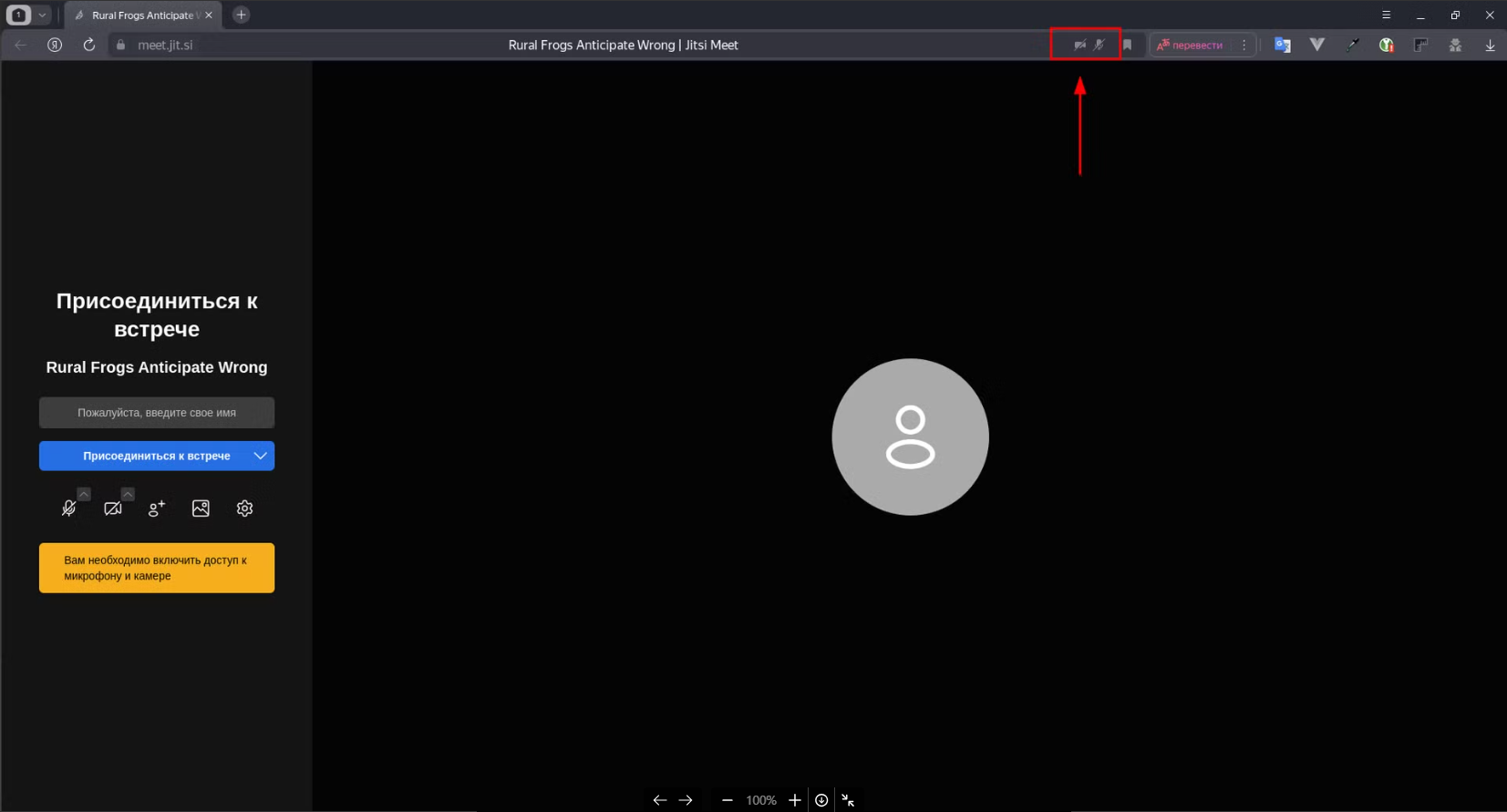
Yandex Browser
1. In the upper-right corner at the end of the address bar, click on the icons with the camera and microphone crossed out.
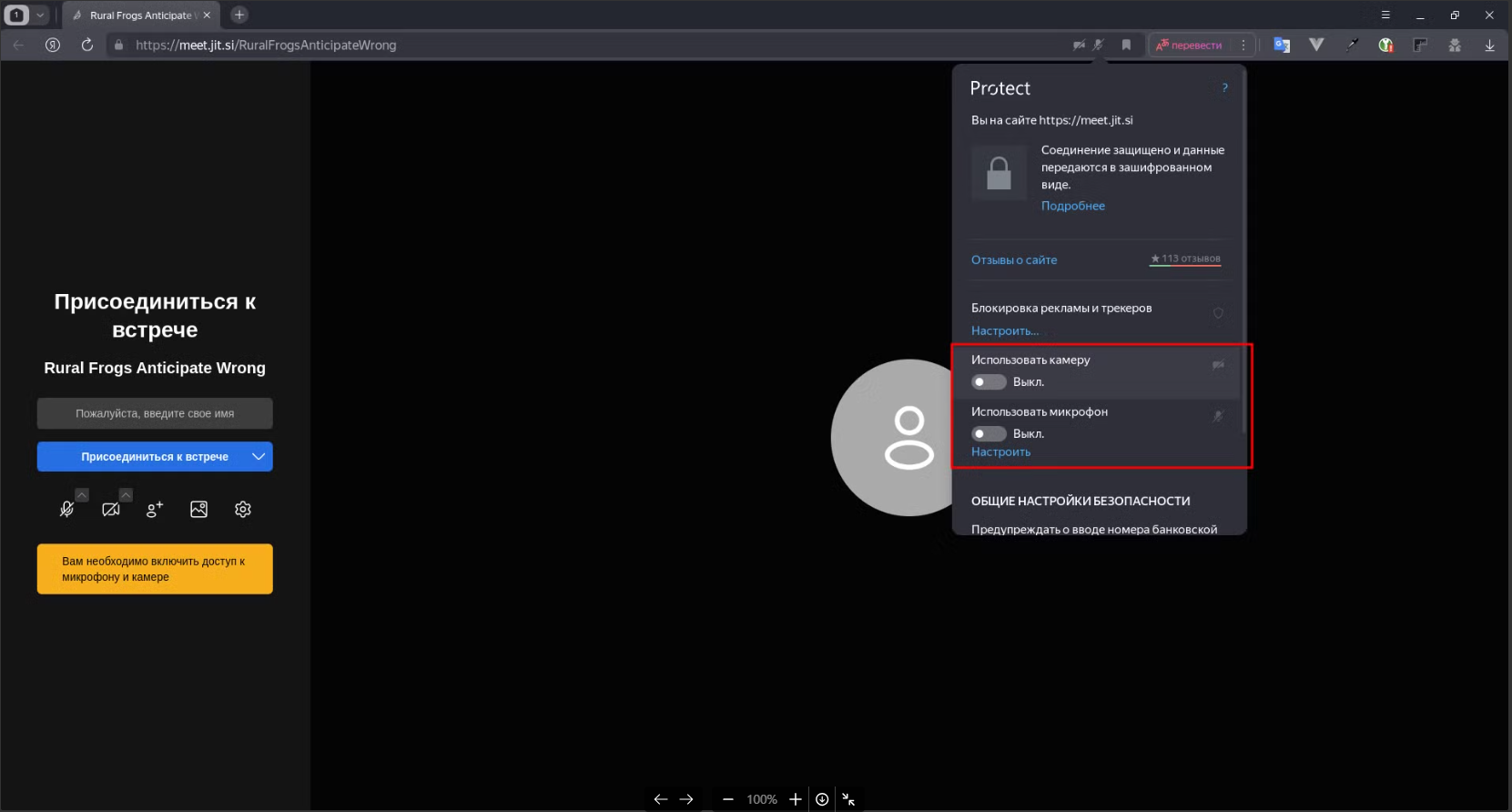
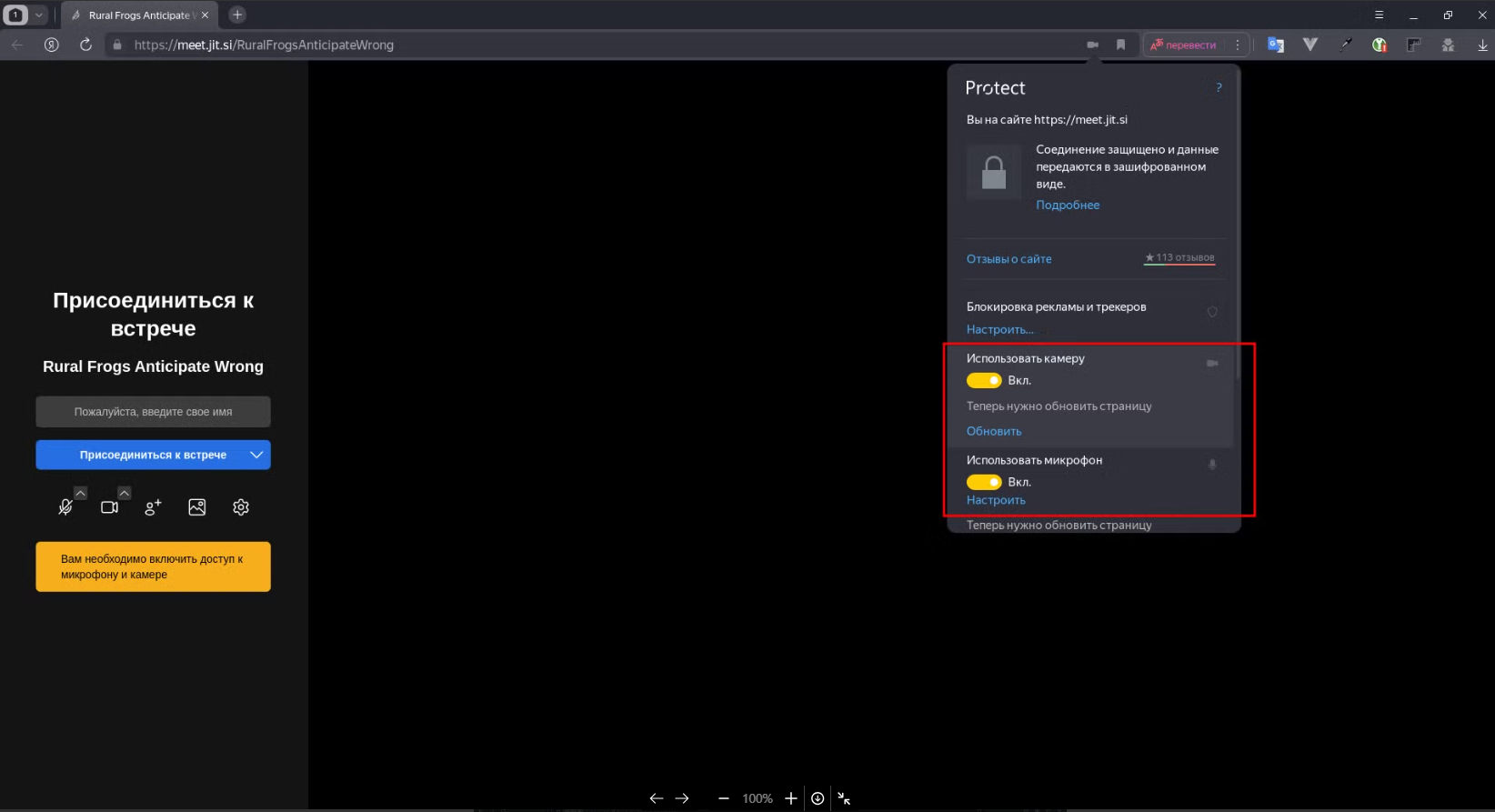
2. In the menu that appears, turn «Использовать камеру»on and «Использовать микрофон».
FireFox
1. In the upper-left corner at the beginning of the address bar, click on the icons with the camera and microphone crossed out.
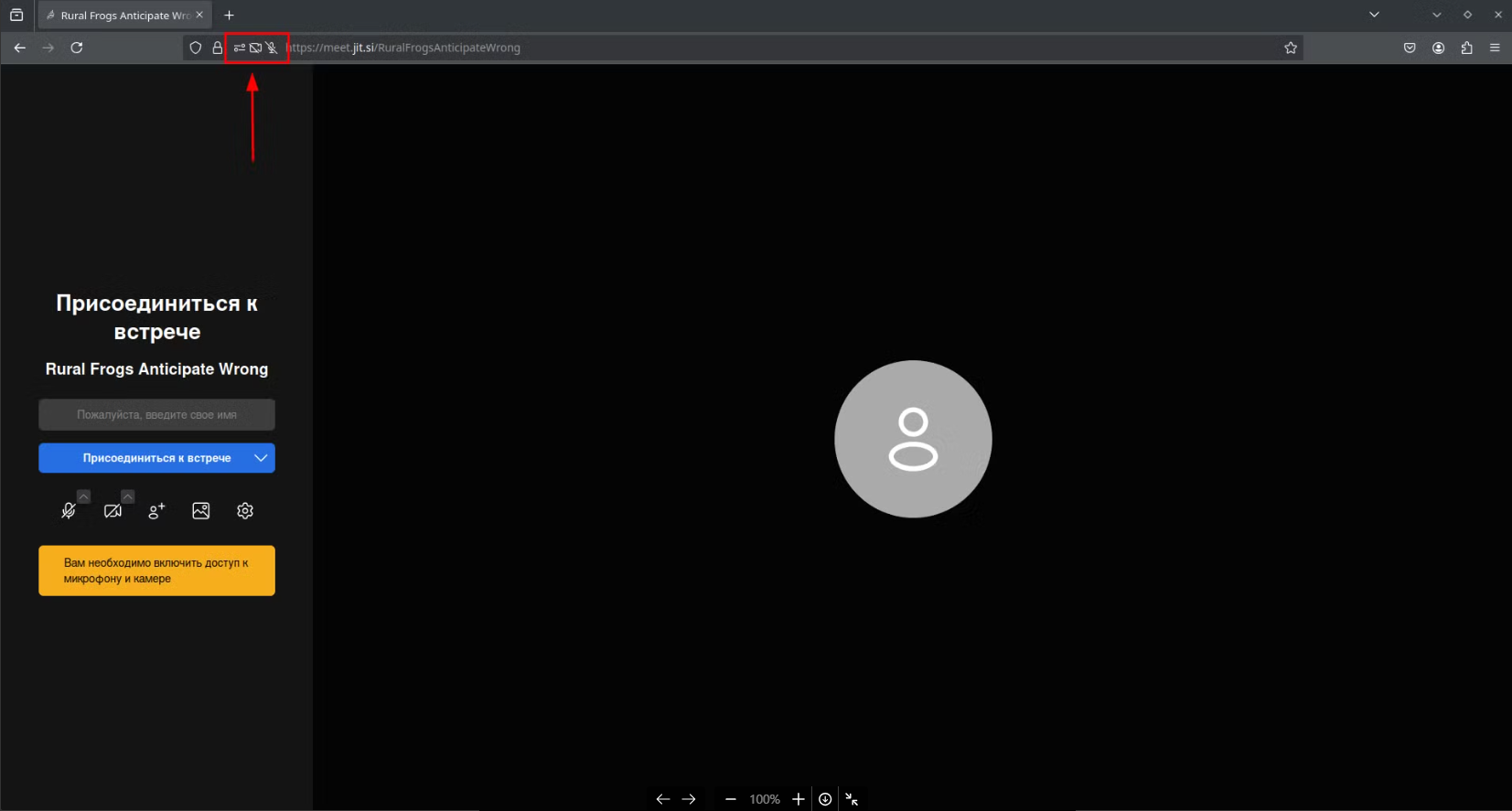
2. Click on the crosses on the bars «Временно заблокировано»opposite «Использовать микрофон»and «Использовать камеру».
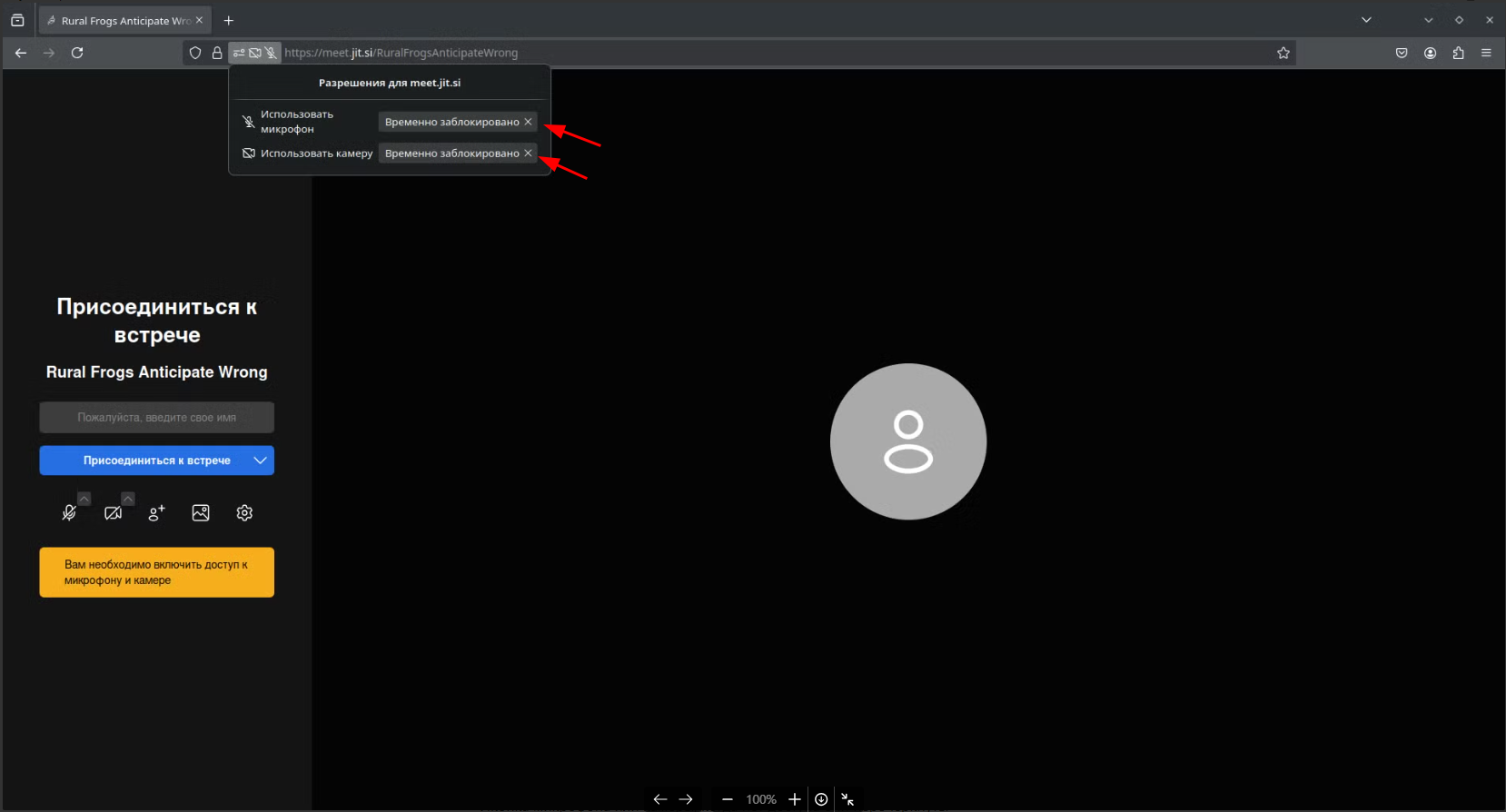
3. Reload the page.
Other browsers
The logic of actions will be similar to the options for Chrome, Yandex Browser and FireFox described above.
There will be a settings icon next to the address bar, which you need to click to turn on the camera and microphone.