


How to add a document to a medical record
Documents from the doctor
Working with folders in the medical record
How to add a folder
How to add a document to a folder
How to move a document between folders
How to delete a document
You can store the results of examinations, analyses and expert opinions in a medical file. All of them are uploaded to the "Медкарта" section.
Important! You can add no more than 180 files to your medical record per day.
If you have reached the limit, you will be able to upload new files only after a day.
You can add the documents yourself or they can be sent by doctors and clinics.
The medical record can be shared with doctors.
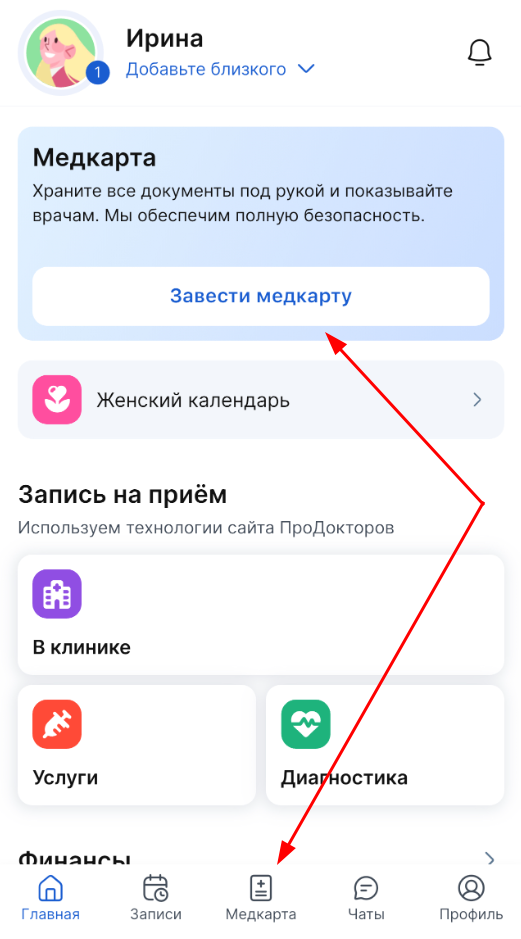
To start using the medical card, confirm the email:
1. Log in to the medical center.
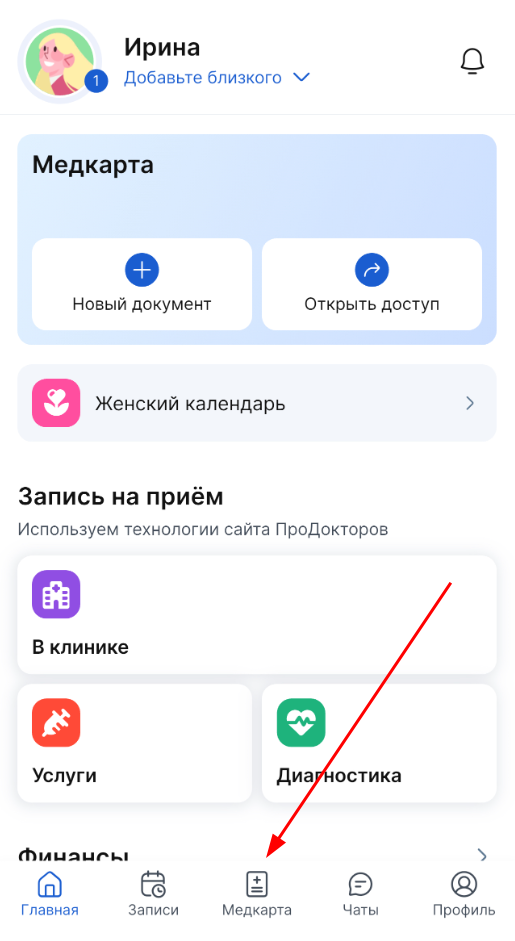
2. Tap «Медкарта» on the home screen or on the bottom panel.
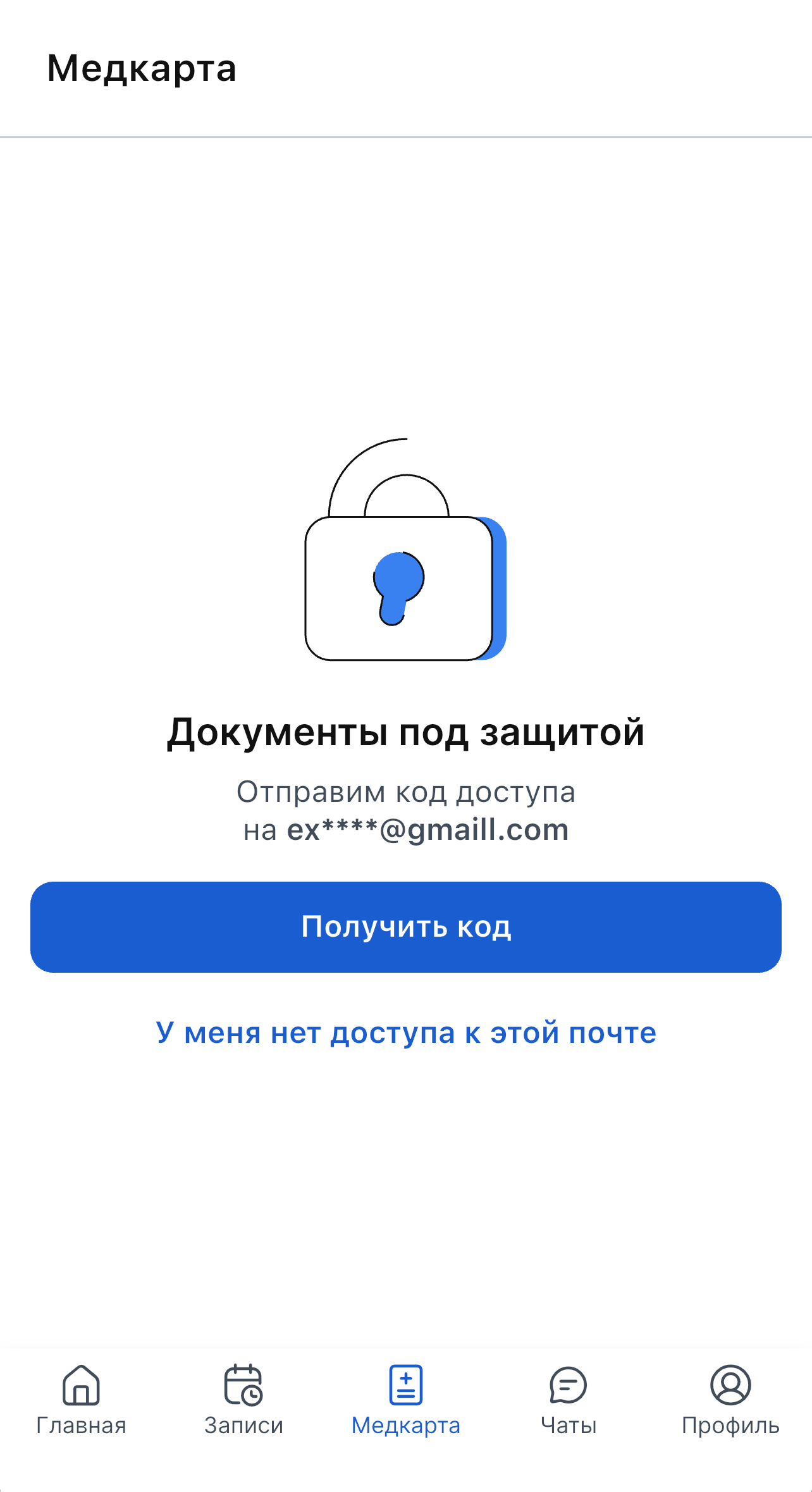
3. Receive the confirmation code by email and enter it.
How to add a document to a medical record 
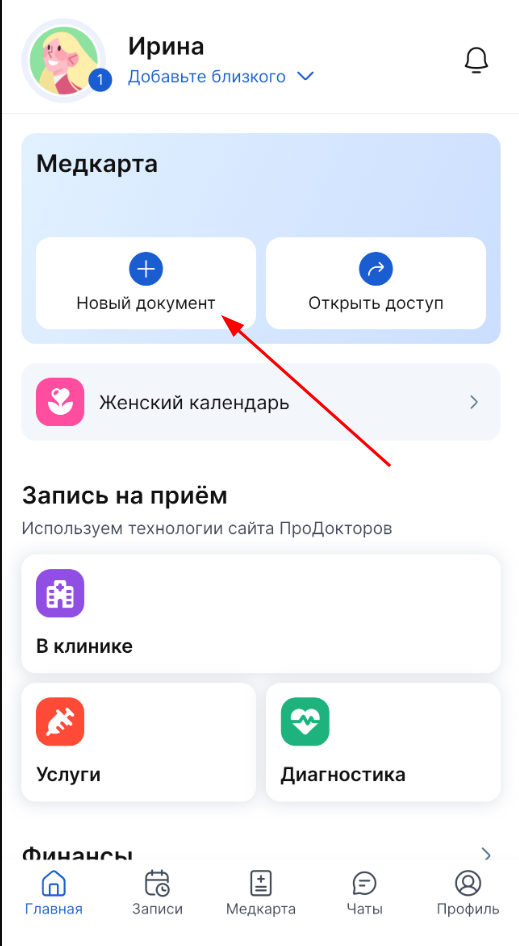
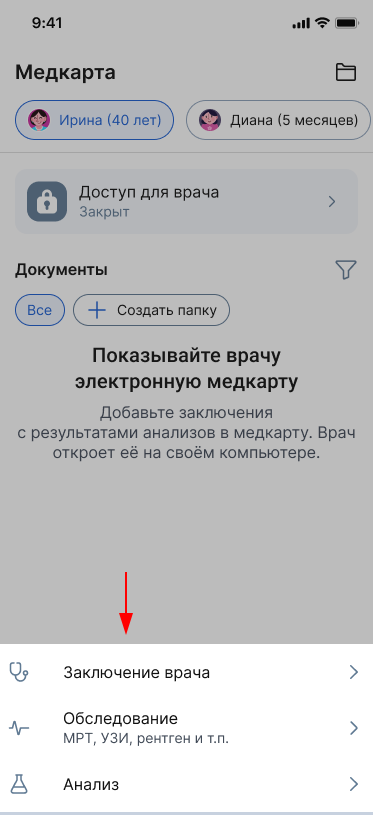
1. On the main screen, in the «Медкарта» block, tap «+Новый документ».
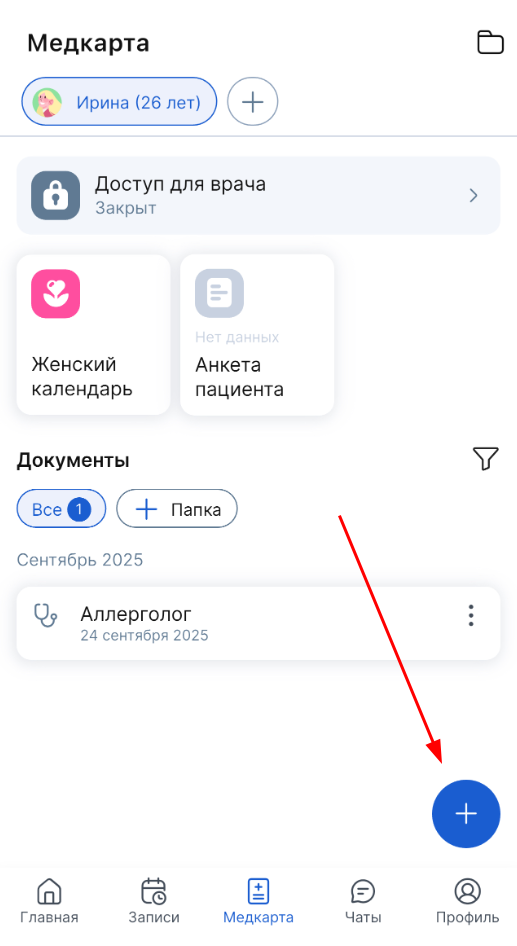
Or enter the section «Медкарта» on the bottom panel, and then click on the round button «+».
2. Select the document type:
- The doctor's opinion.
- Exam.
- Analysis.
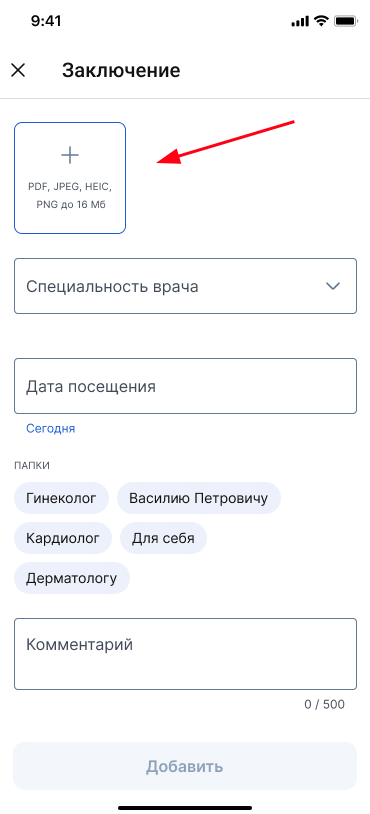
3. Click on the square box with the «+» sign. Upload a document in PDF, JPEG, PNG or HEIC format up to 16 MB in size.
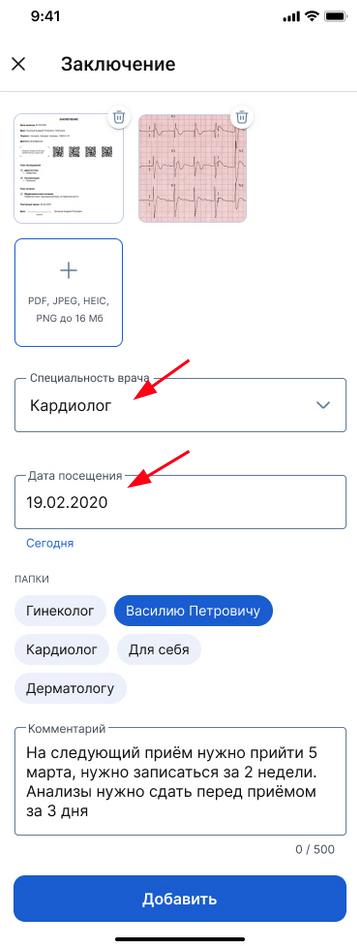
4. Fill in the details of the document: the name of the doctor, examination or analysis, and the date of admission or examination.
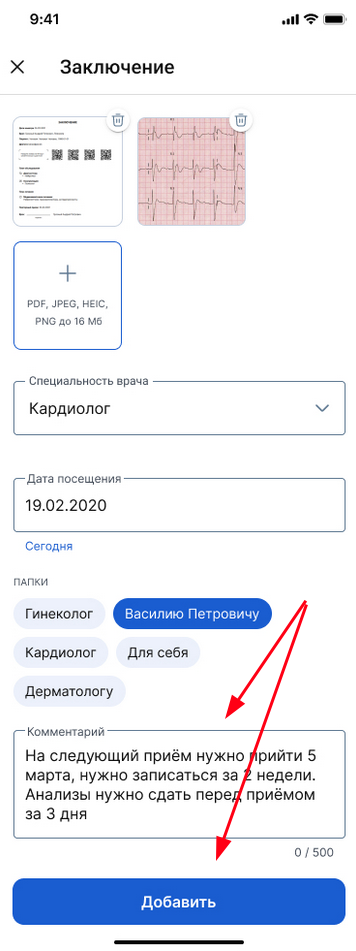
5. Click «Добавить». You can also add a comment with additional information about the admission. The text of the comment will be visible only to you.
Documents from the doctor
The doctor can send you his opinion and recommendations if he has a МедТочка Врач — an application for a doctor.
The unread documents that the doctors send will be marked in the medical record «Новое».

Working with folders in the medical record
How to add a folder
Method number 1
1. On the bottom panel, select «Медкарта».
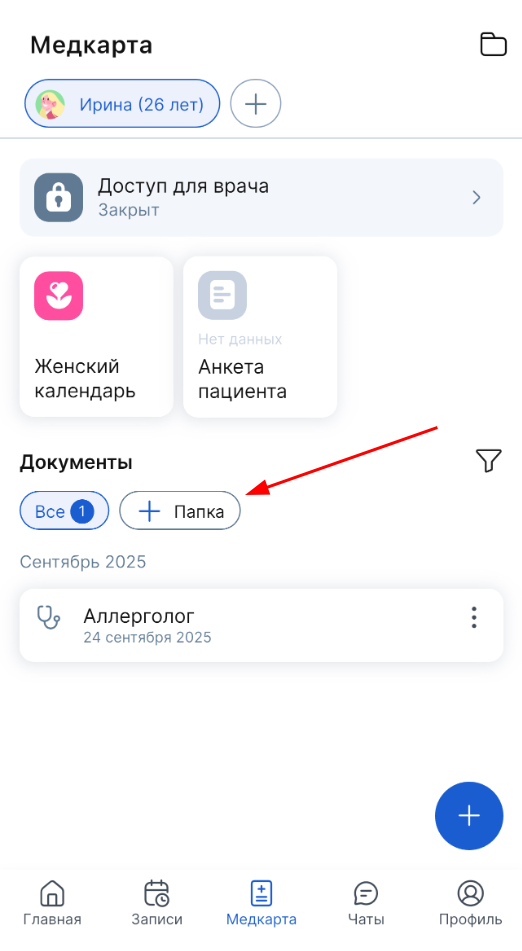
2. Click on «+Папка» in the field «Документы».
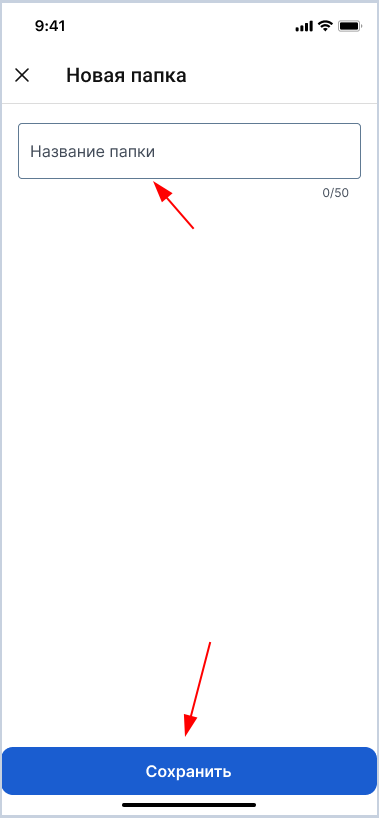
3. Enter the folder name and click «Сохранить».
Method number 2
1. Go to the medical record.
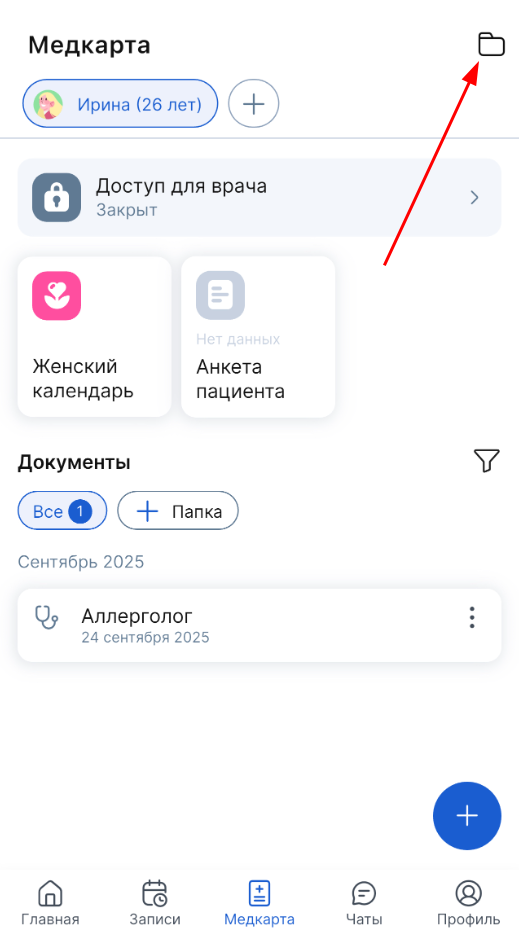
2. Click on the folder icon in the upper-right corner.
3. Click «+Создать папку».
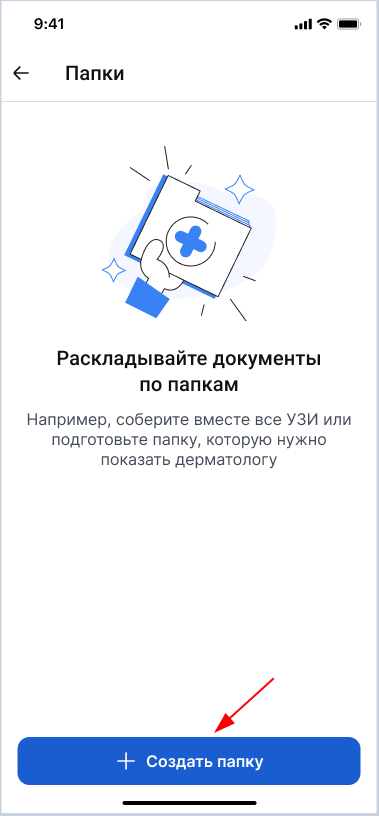
4. Enter the folder name and click «Сохранить».
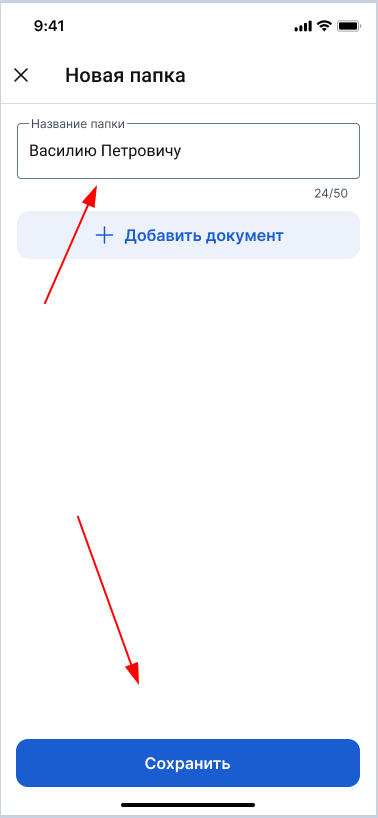
How to add a document to a folder
When adding a new document, select the appropriate folder in the field «Папки».
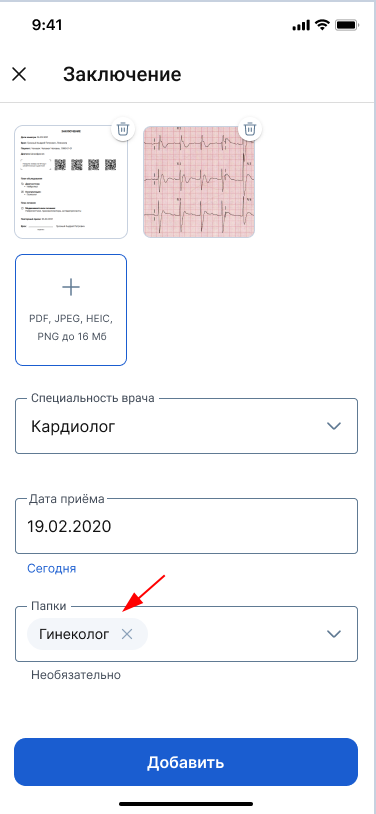
All your document folders are inside the folder «Все».
How to move a document between folders
You can remove a document from one folder and add it to another.
1. Select the desired document and click the three dots opposite it.
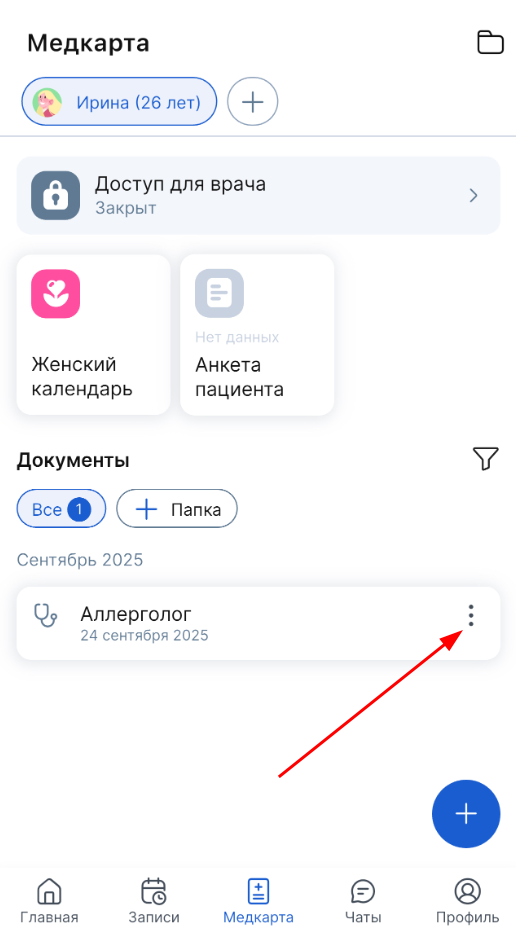
2. To add a document to a folder, select «Добавить документ в папку».
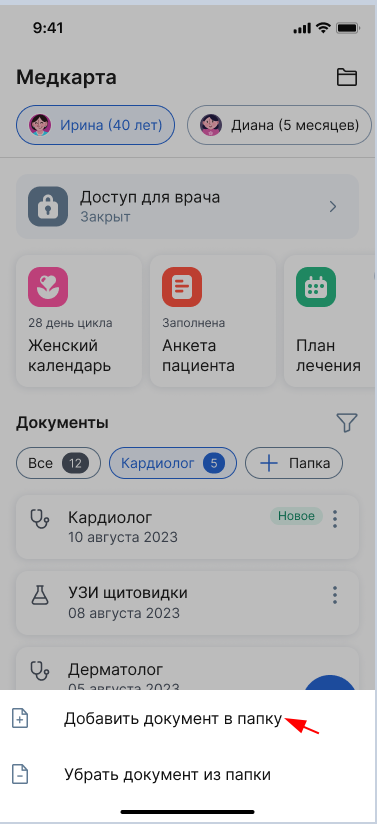
3. Check the box of the folder where you want to add the document. You can choose several at once.
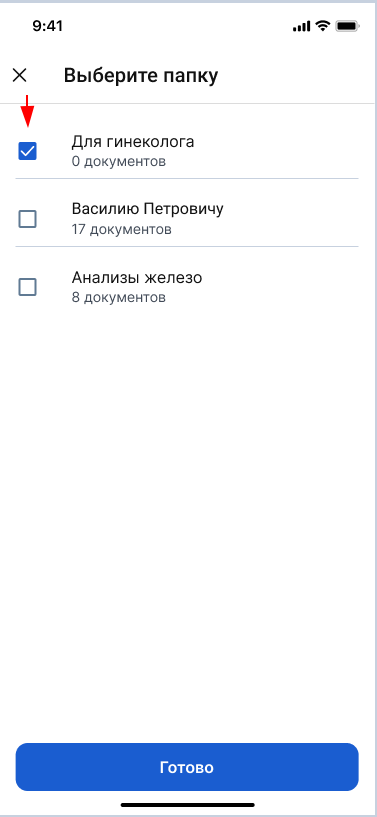
After selecting it, click «Готово».
To remove a document from a folder, open the folder in which it is located and select «Убрать документ из папки».
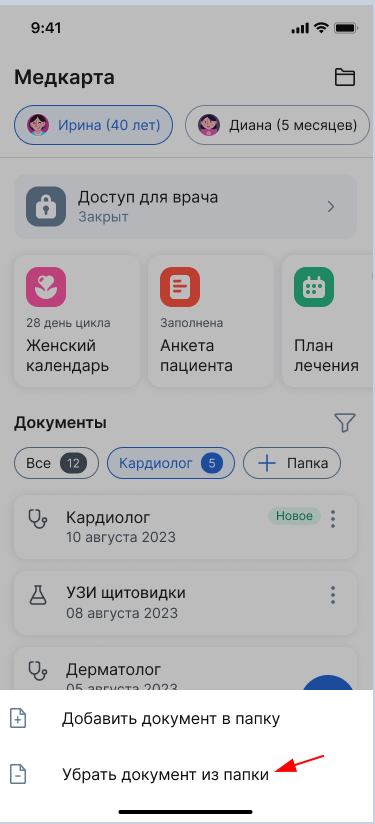
After that, if the document is not in other folders, it will remain only in the folder «Все».
How to delete a document
1. In the medical record, click on the required document.
2. Click on the urn icon in the upper-right corner.
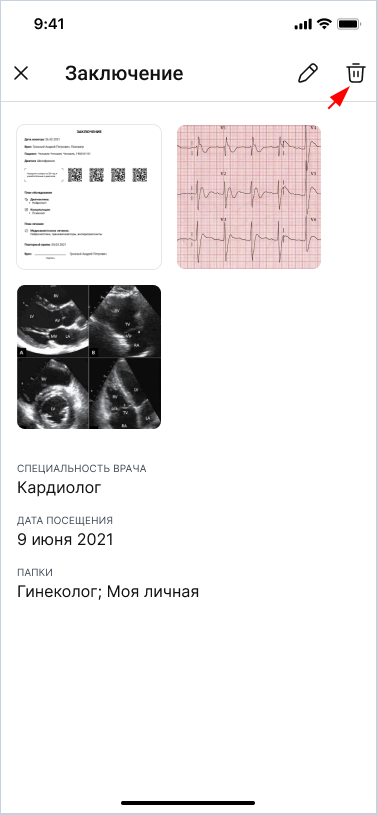
3. Confirm the action.
Important! It is impossible to restore the document after deleting it. You will have to download it again.