


How to set the master password
How to add mail to restore access
How to change the master password
What to do if you forgot your password
The master password is a single 6-digit code that protects the login to the application and access to your medical record. It replaces other confirmation methods and makes logging in fast and convenient.
The master password is linked to the account, not to the device. When logging in from another phone or computer, use the same code that you set when you first logged in.
Important! You can set, change, or reset the master password only in the app. These actions are not available in the web version. You can log in to the web version using the master password already created in the application.
How to set the master password 
1. Update the medical card to the current version.
2. Open the application and read the information about the master password. Then click «Установить мастер-пароль».
Important! You will not be able to access the app without setting the master password.
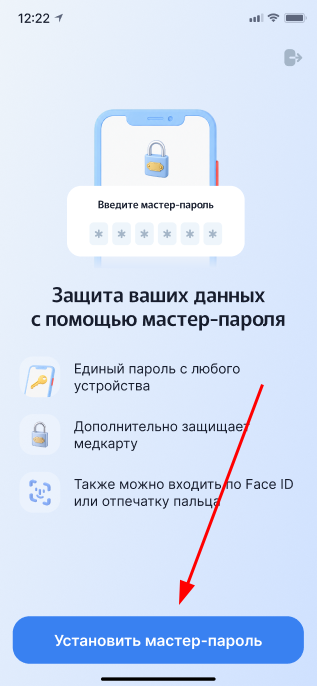
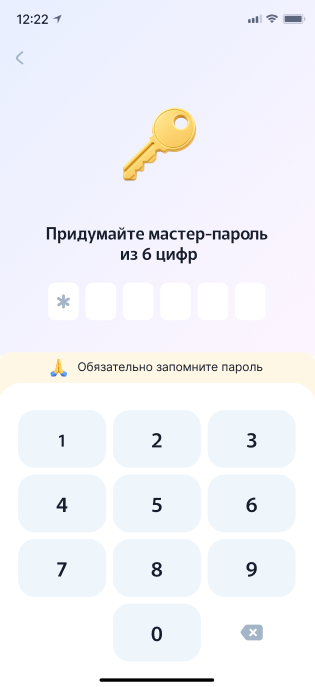
3. Follow the prompts on the screen: first come up with a 6-digit password, and then repeat it.
Important! Be sure to remember the password. If you forget it, you can restore access only through a code from an email to the email address specified in your profile. If the email address is not specified, you will not be able to restore the password. You will need to delete the profile and create it again. All data will be lost.
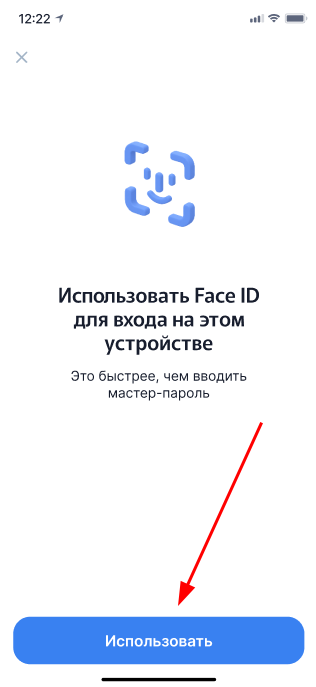
4. After setting the master password, the application will prompt you to set up a biometric login — Face ID or Touch ID.
If you want to install biometrics, tap «Использовать»— the Face ID or Touch ID settings screen opens. If you don't want to, click on the cross in the upper—left corner. You can set up biometrics later in your profile settings.
After that, you will be redirected to the application, and the master password will «ключом»be from your profile.
Important! Make sure to specify the email address in the profile settings. It is necessary to restore access to the master password if you forget it.
How to add mail to restore access
If you have logged in for the first time or have not previously specified an email address, a notification will appear on the main page in the block«Ждут действия».
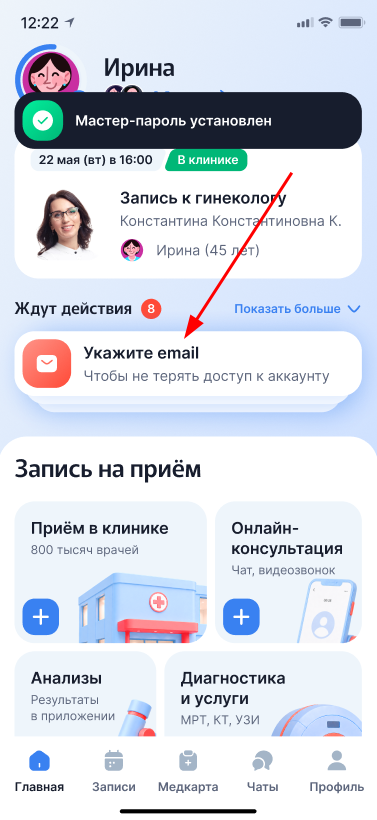
Click on it and enter the email address, then confirm it.
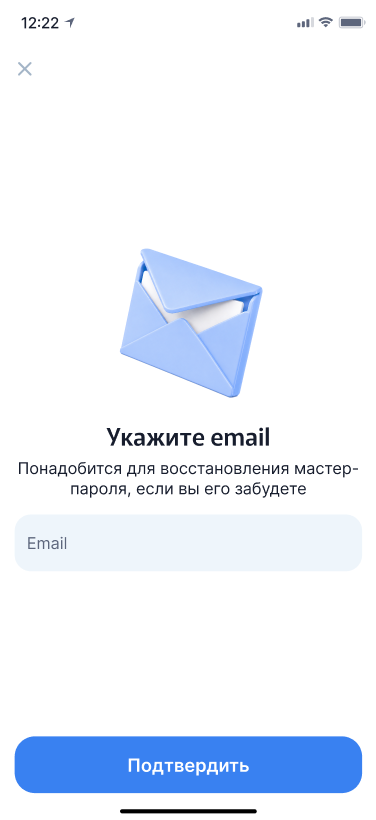
If there is no notification, add the email manually: go to the section«Профиль», scroll down the screen and select «Электронная почта». Enter the address and confirm it.
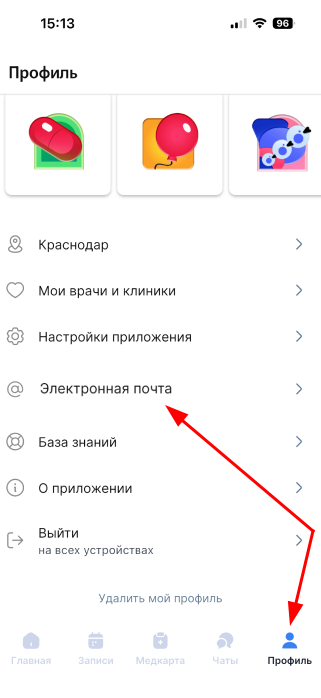
How to change the master password
1. Open the section «Профиль»and select «Настройки приложения».

2. Press the button at the top of the screen«Изменить мастер-пароль».

3. Enter the current master password. This is necessary to make sure that you are the one changing the password.
Important! If you don't remember your password, click «Забыли пароль?»and follow the instructions in the What to do if you forgot your password section.

4. After entering the current master password correctly, create a new one and confirm it. Follow the on-screen prompts.

5. After successfully changing the master password, a notification will appear on the screen.

What to do if you forgot your password
1. If you do not remember the master password, press «Забыли пароль?».

2. You will be redirected to the confirmation of the email specified in the profile. A code from the email will be sent to it. Enter this code in the special field.

3. After entering the code correctly, you will be able to set a new master password.
If you don't have an email address linked to your profile or you don't have access to it, Honey will prompt you to reset your profile. This will result in the complete deletion of the profile and all data. After resetting, you will return to an empty profile.
Important! Access cannot be restored without the linked email address. The only way out is to reset the profile with the loss of all data. For information on how to add mail, see How to add mail to restore access.