


Push notification in the app
The Telegram code
VKontakte code
Authorization via a call
On the authorization page, enter your phone number and click «Продолжить». Check the box «Я не робот» to make the button available.
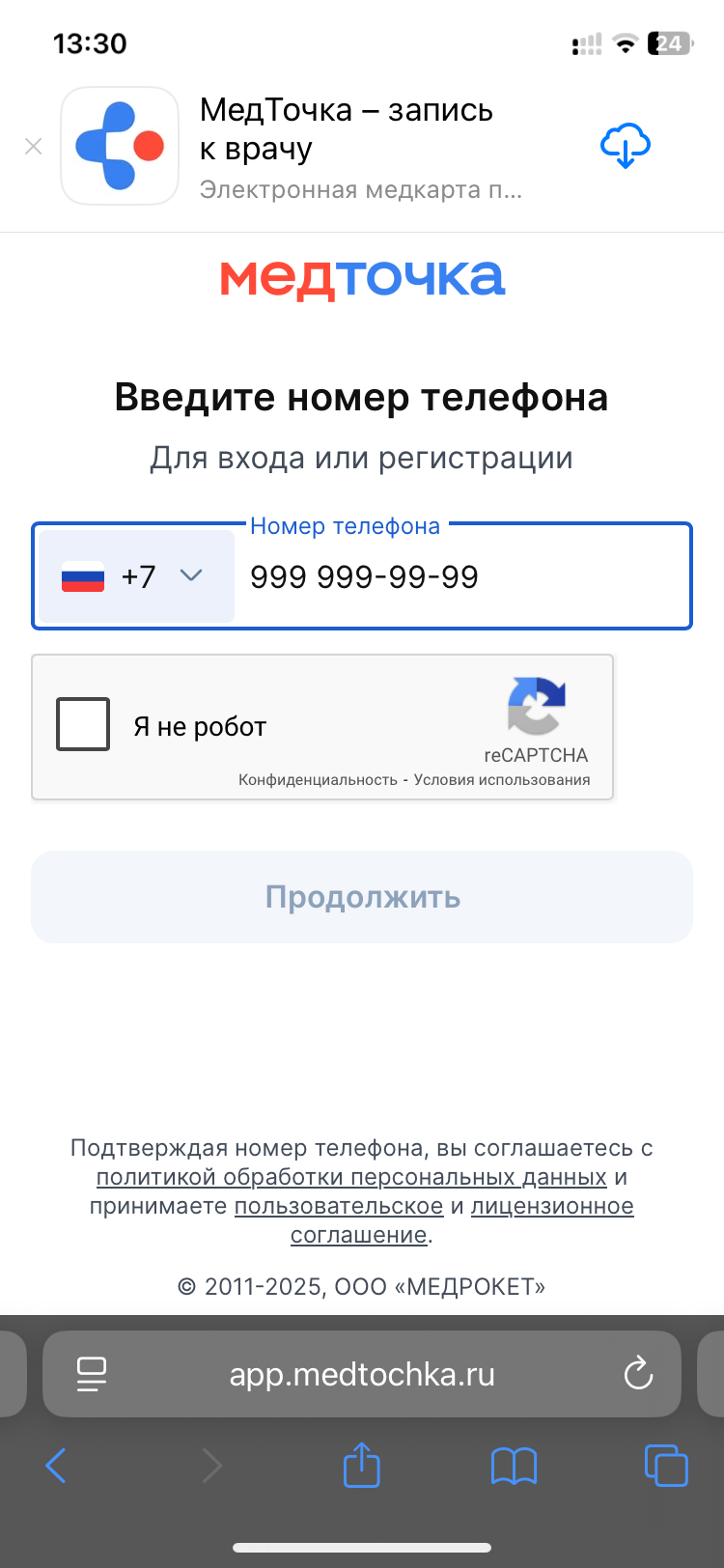
A menu with all the login options will appear.
Authorization via push notification in the МедТочка app 
You must have the МедТочка app installed and push notifications enabled. To learn how to enable them, see the article Configuring notifications in the app.
1. Select an option «МедТочка».
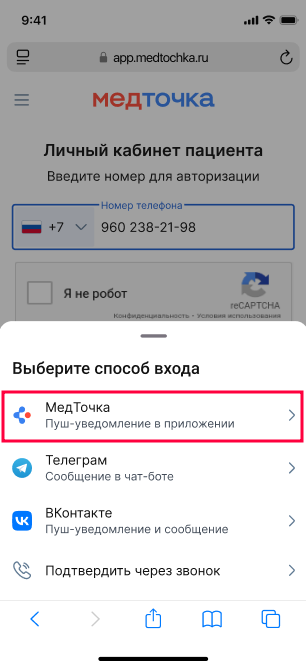
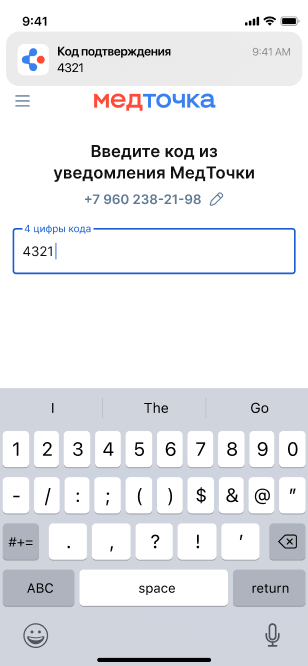
A page opens with a field for the code.
2. Enter the code from the notification from the МедТочка app.
If you accidentally hid a notification with a code, you can find it in the app's notifications. To do this, open the card and click on «Bell».
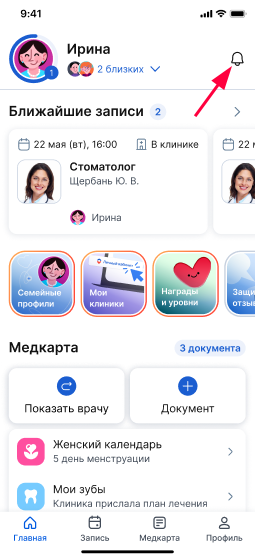
A page will open with a list of all notifications, and find the code to log in to the account.
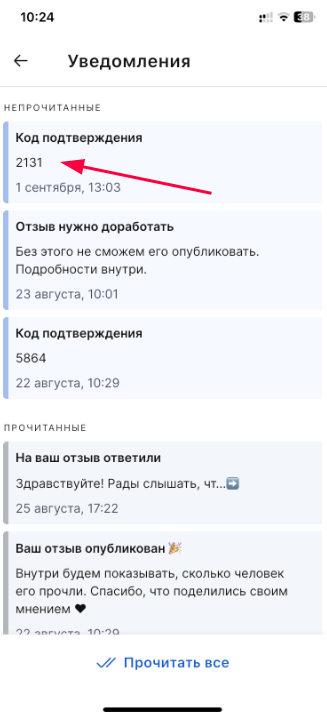
Remember or copy the code, go back to the authorization page and write the code in the input field.
The code in the Telegram chatbot
1. Select an option «Телеграм».
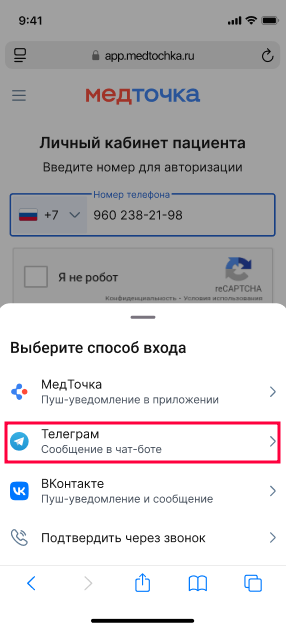
A page opens with a field for the code.
2. If the code did not arrive automatically, press the button «Открыть Телеграм на телефоне».
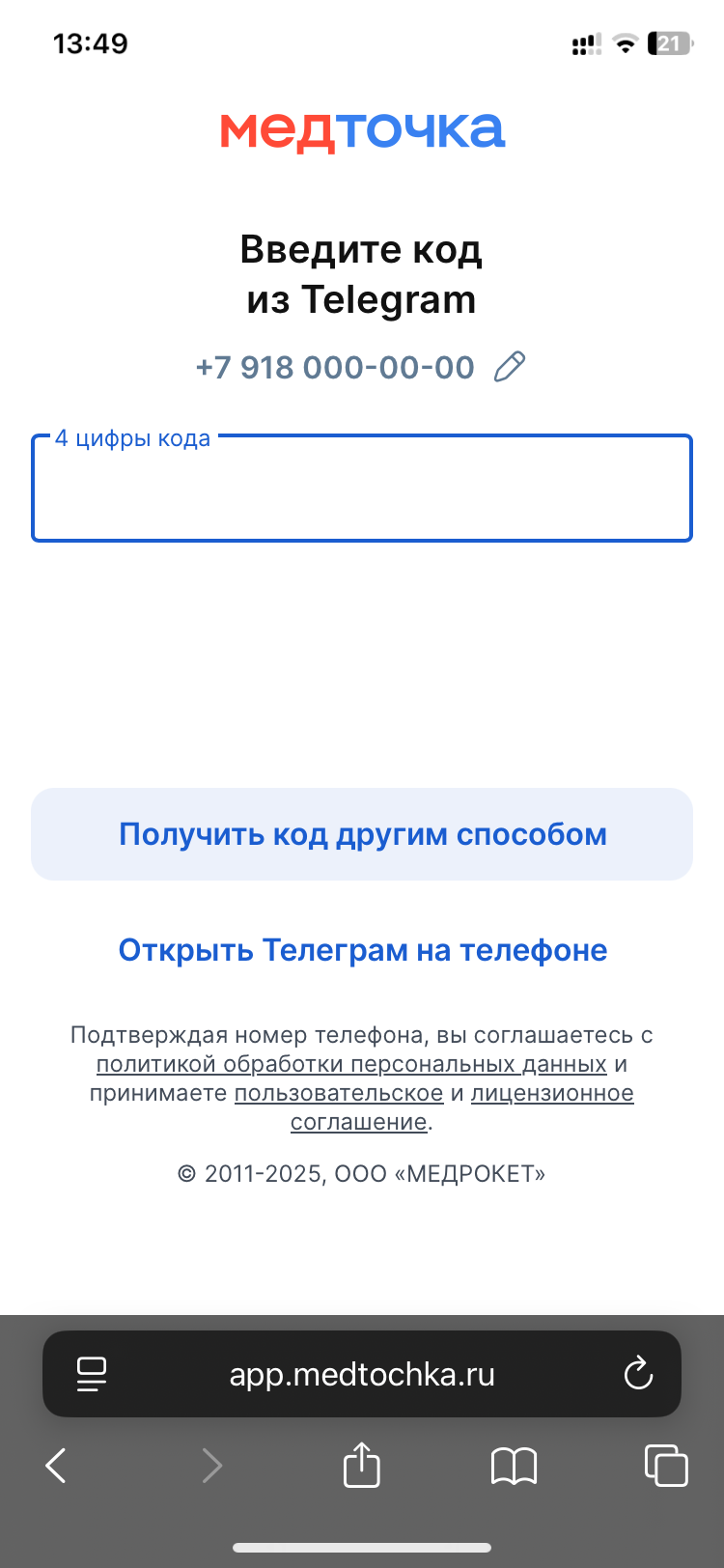
A page opens in the browser to go to Telegram.
3. Click the button «Открыть» to go to the Telegram app.
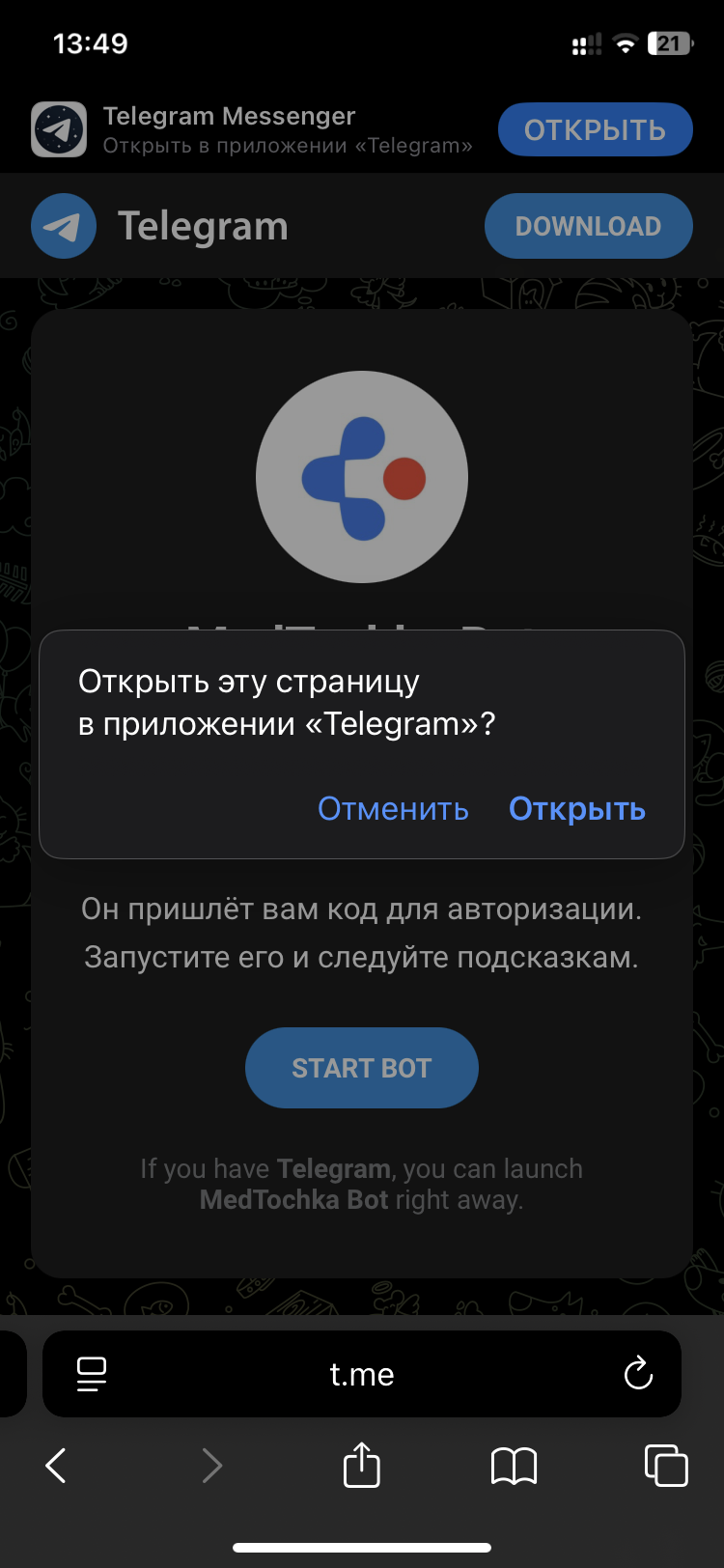
4. The Telegram chatbot opens.
- In the chat that opens, click «Старт». You will receive a short instruction on how to use the chatbot.
- Send the number to the chat by clicking on the button «Поделиться своим номером».
- In the reply message, you will receive a code to log in to the medical center, copy it or remember it.
- Go back to the authorization page in the browser and enter the code.
VKontakte code
For this authorization method, you must have the VKontakte application installed and logged in to it.
1. Select an option «ВКонтакте».
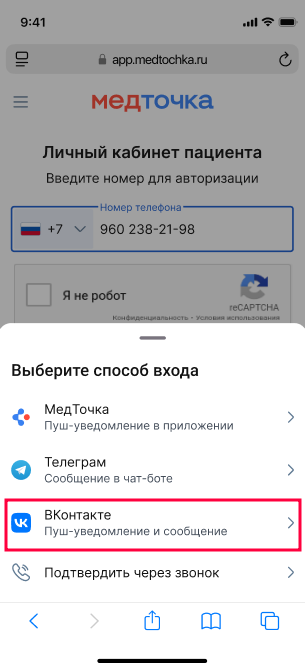
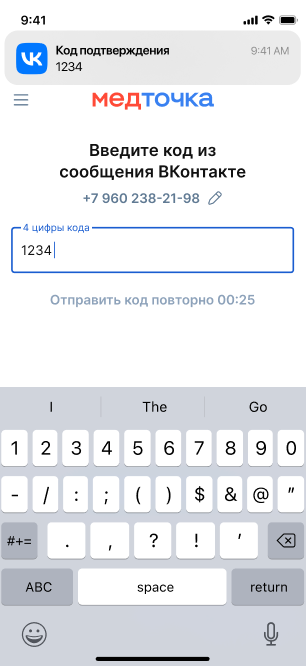
A page opens with a field for the code.
2. You will receive a notification from VKontakte. Enter the code from the push notification in the code field.
Authorization via a call
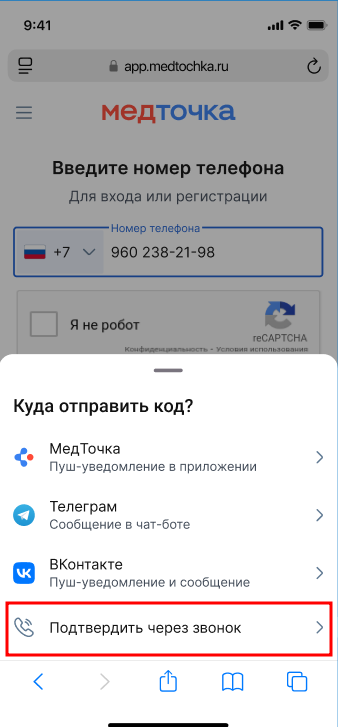
There are 2 ways to log in via a call: an outgoing call is available immediately, and an incoming call is available after 1 minute.
Select an option «Подтвердить через звонок». The call authorization page opens.
Authorization via outgoing call
Press the button «Позвонить» and an outgoing call will start.
Important! The call is free and will end automatically, there is no need to say anything.
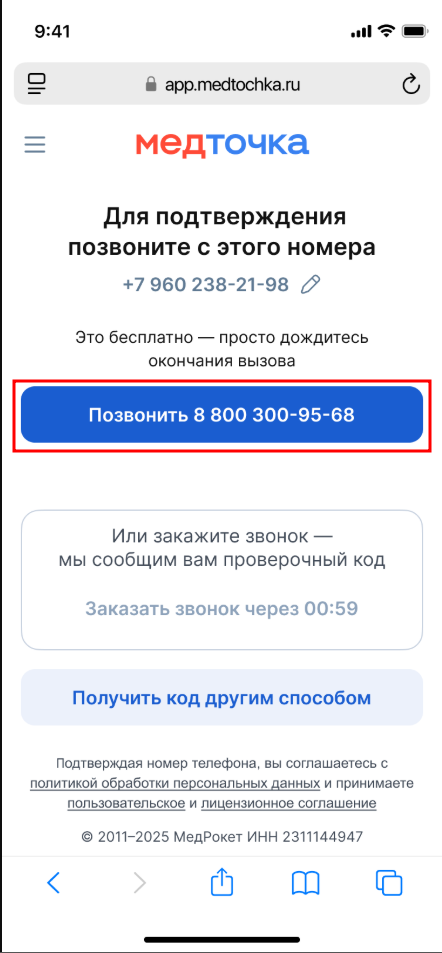
When the call ends, you will automatically log in to your account.
Authorization via incoming call
Click on the button «Заказать звонок» — it will be available in 1 minute after opening the page.
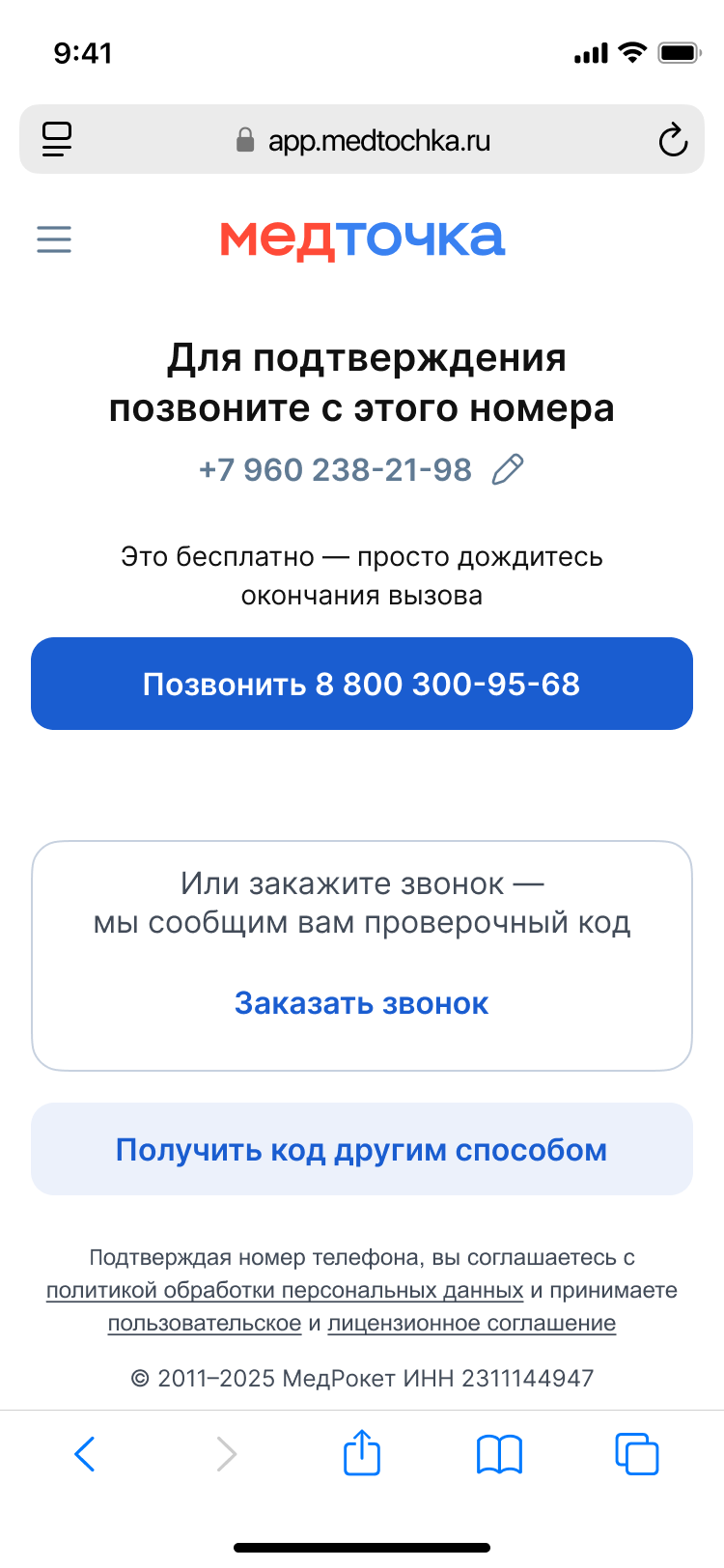
You will receive an incoming call and the robot will dictate the login code twice.
When you have listened to the code, end the call, return to the authorization page and enter the code in the code field.
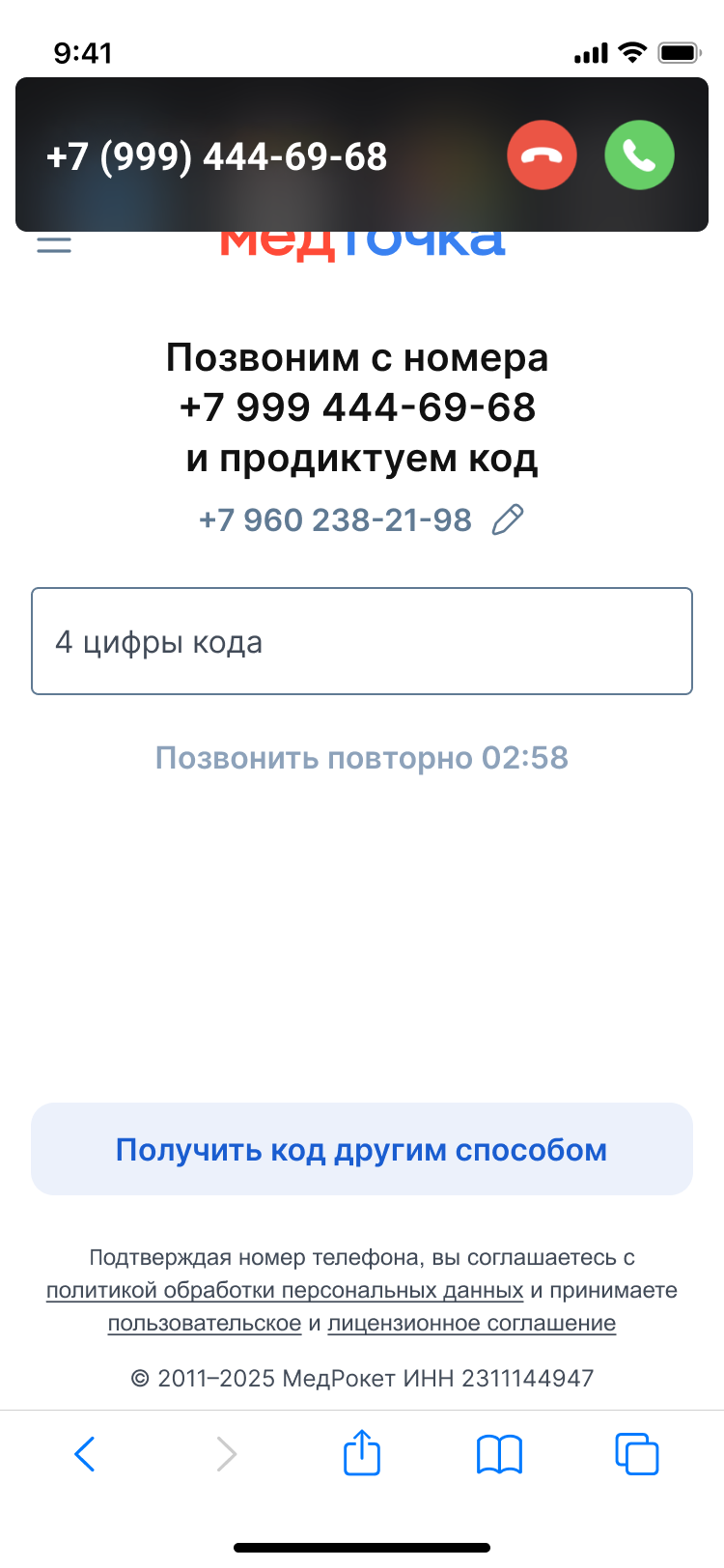
Important! If you entered the code incorrectly or did not have time to enter it within 15 minutes, you can order a repeat call in 3 minutes.
What to do in case of an error, read the article Errors during authorization.